
The best laptop for video editing and motion graphics depends on the software you use, the resolution of your footage and the complexity of your projects. For demanding work in Adobe Premiere Pro, After Effects or DaVinci Resolve, prioritise a powerful processor, a capable GPU, 32GB RAM, a fast SSD and a good-quality display. For beginners editing short 1080p videos, a well-configured laptop with 16GB RAM may be sufficient.
The five laptops considered in this guide are the Dell 15 AI-Powered Laptop, HP Victus Smartchoice, Acer Aspire 5 AI PC, Dell 15 SmartChoice (previously Inspiron) and Apple MacBook Neo 13. They target different types of users, so the right choice depends on their exact configurations.
Important: Check the processor, graphics, memory, storage and display of the exact Indian SKU before buying. Laptop specifications can differ between retailers and configurations sold under the same product family.
Key Takeaways
- For demanding motion graphics: Prefer a laptop with a powerful CPU, a dedicated GPU where appropriate, 32GB RAM or more, and sufficient SSD storage.
- For everyday video editing: A modern processor, 16GB RAM and a fast SSD can provide a reasonable starting point.
- For GPU-intensive effects: Compare actual GPU performance and dedicated graphics memory rather than relying on an AI PC label.
- For colour grading: Display quality and colour accuracy matter alongside processing power.
- For Apple users: Check application compatibility and memory requirements before choosing an entry-level MacBook.
- For Indian buyers: Verify the exact SKU, final price, upgrade options, warranty and return policy before placing an order.
How to Choose a Laptop for Video Editing and Motion Graphics
Video editing and motion graphics overlap, but they do not place identical demands on a laptop.
Video editing involves arranging footage, trimming clips, adjusting colour, adding transitions, mixing audio and exporting the finished video. Motion graphics may involve animated text, layered compositions, particle effects, tracking, masking, compositing and sometimes 3D rendering.
A laptop that can easily handle basic YouTube video editing may struggle with demanding After Effects projects.Understanding the differences will help you avoid spending money on the wrong configuration.
1. Processor: Choose a Strong CPU
The CPU handles many general editing operations, timeline calculations, application tasks and parts of encoding and rendering.
A modern Intel Core Ultra, AMD Ryzen or Apple silicon processor can be suitable, depending on its generation, power limits and overall performance. The processor name alone is not enough to determine how fast a laptop will be.
When comparing processors, consider:
- The exact processor model and generation.
- Multi-core performance for parallel workloads.
- Single-core performance for tasks that depend on fewer cores.
- Sustained performance during long exports.
- Cooling and power limits.
- Hardware support for the video formats you use.
For example, a video editor who regularly exports long projects may benefit from a processor that maintains its performance under sustained workloads. A motion graphics artist running several applications may also need additional memory rather than simply a faster CPU.
2. Graphics Card: When Do You Need a Dedicated GPU?
The GPU accelerates supported effects, colour processing, compositing, certain export operations and 3D rendering. Its importance depends on the application and the type of work being performed.
Integrated graphics share system memory and are suitable for many everyday tasks. A dedicated NVIDIA or AMD GPU comes with its own graphics memory and can deliver significantly better performance in applications that benefit from GPU acceleration.
A dedicated GPU is especially worth considering for:
- Complex GPU-accelerated effects.
- Demanding DaVinci Resolve projects.
- GPU rendering in compatible 3D applications.
- Heavy compositing and visual-effects work.
- AI-assisted effects that benefit from supported GPU acceleration.
However, a dedicated GPU is not automatically necessary for every editor. If you primarily cut short videos, add subtitles and export social-media content, a modern integrated GPU may be sufficient.
When comparing gaming laptops, do not look at the graphics card name alone. Check its power configuration, available VRAM, cooling and the performance of the complete laptop.
3. RAM: Is 16GB Enough?
RAM stores the data that applications need to access quickly while you work. Insufficient memory can cause slowdowns, longer preview times and increased reliance on storage.
For most buyers, these are useful planning targets:
| Workload | Suggested RAM | Practical Guidance |
|---|---|---|
| Basic 1080p Editing | 16GB | A reasonable starting point for basic video editing. |
| Multitrack Editing and Regular Creative Work | 16–32GB | Choose 32GB if projects and multitasking are demanding. |
| 4K Video Editing | 32GB | A sensible target for a more comfortable editing workflow. |
| After Effects and Complex Motion Graphics | 32GB or More | Large compositions may benefit from substantially more RAM. |
| Heavy Compositing, 3D and Professional Projects | 32–64GB+ | Actual requirements depend on project complexity and workload. |
These are buying recommendations, not universal software minimums. Actual requirements vary with application version, footage, effects and project size.
If you plan to use After Effects alongside Premiere Pro, Photoshop and other applications, 32GB RAM is a better target than 8GB or 16GB for many demanding workflows.
Also check whether the laptop’s RAM is upgradeable. Some thin laptops and Apple computers use non-upgradeable unified memory, making the original configuration particularly important.
4. SSD Storage: Why 512GB May Not Be Enough
Editing applications, source footage, proxy files, cache files, exports and project backups can consume storage quickly.
A 512GB SSD can work for small projects if you manage your files carefully. For regular editing, however, a 1TB SSD is a more comfortable target.
Consider the following:
- 512GB SSD: Suitable for lighter workloads and users who manage storage carefully.
- 1TB SSD: A practical target for regular video editing.
- 2TB or more: Useful for larger local media libraries and multiple ongoing projects.
An external SSD can help store footage, project archives and backups. It does not replace the benefits of having sufficient fast internal storage for applications and cache.
Before buying, check whether the laptop has an additional M.2 slot or whether replacing the existing SSD is the only upgrade option.
5. Display: Important for Colour Grading
A high-resolution display is useful, but resolution alone does not guarantee good image quality.
For video editing and motion graphics, check:
- Native resolution, preferably Full HD or higher.
- Colour-gamut coverage, such as sRGB or DCI-P3.
- Brightness and reflection handling.
- Contrast and viewing angles.
- Factory colour accuracy, where documented.
- External-monitor connectivity.
A display with good colour accuracy is particularly important for colour grading, advertising work and content that must look consistent across devices.
If your laptop has a basic display, an external colour-accurate monitor can improve your working setup. However, the external monitor adds to the overall cost.
6. Cooling and Build Quality
Video editing can keep the processor and GPU busy for extended periods. A laptop that performs well in a short benchmark may behave differently during a long render.
Look for independent tests of sustained performance, fan noise and temperatures where available. Also consider keyboard comfort, port selection, charger size and portability.
For Indian buyers, warranty coverage and access to authorised service are additional factors worth checking before purchasing.
Best Laptops for Video Editing and Motion Graphics
The following shortlist includes the five requested laptops. Their suitability depends on the precise Indian configuration available for purchase.
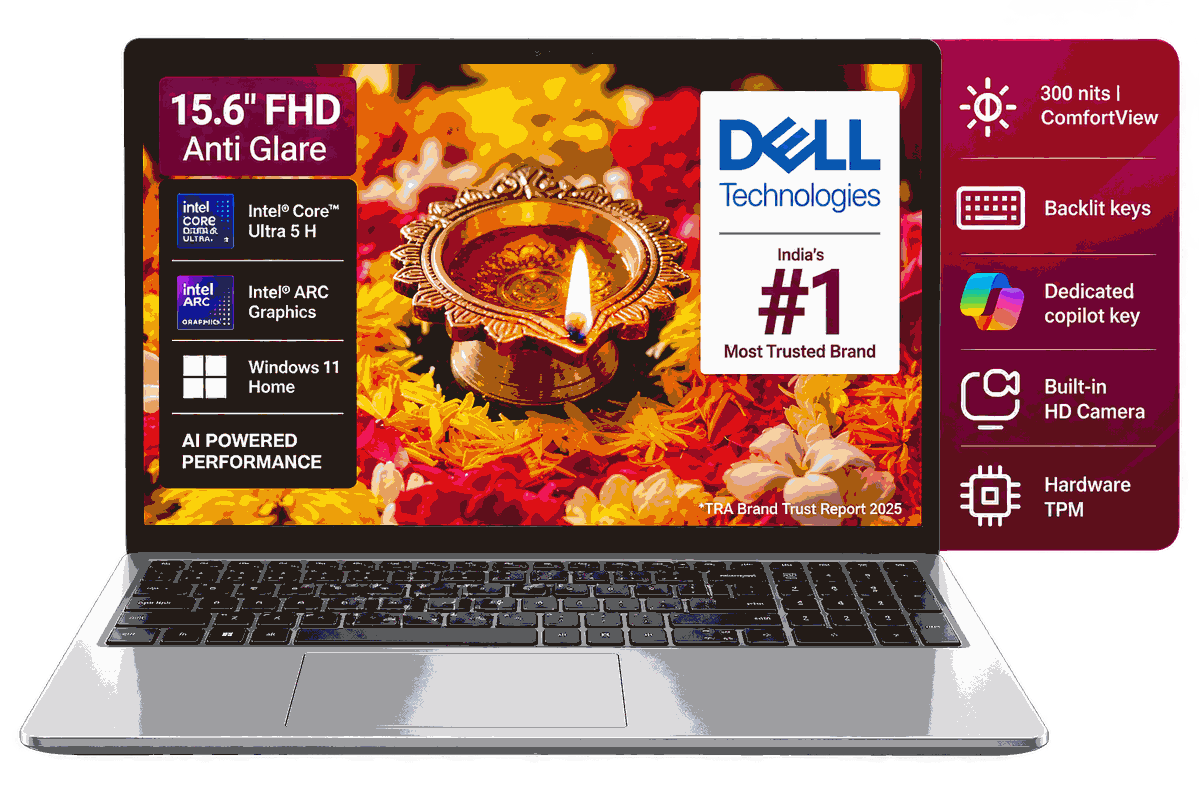
Dell 15 AI-Powered Laptop
Best for: Everyday productivity and light creative work.
Dell’s 15-inch AI-focused laptop family includes configurations with Intel Core Ultra processors and integrated Intel Arc graphics. Check the exact configuration before buying it for demanding video editing.
Key Highlights
- Modern processors for everyday productivity
- 15-inch display for a comfortable workspace
- Suitable for basic editing and short videos
- Useful for students, office users and casual creators
Integrated graphics may limit performance in demanding GPU-accelerated workflows. Check the display’s colour coverage, RAM capacity and exact processor before buying.
Buying advice: Compare the CPU, RAM, SSD and display specifications. For intensive After Effects projects, consider laptops with dedicated graphics.
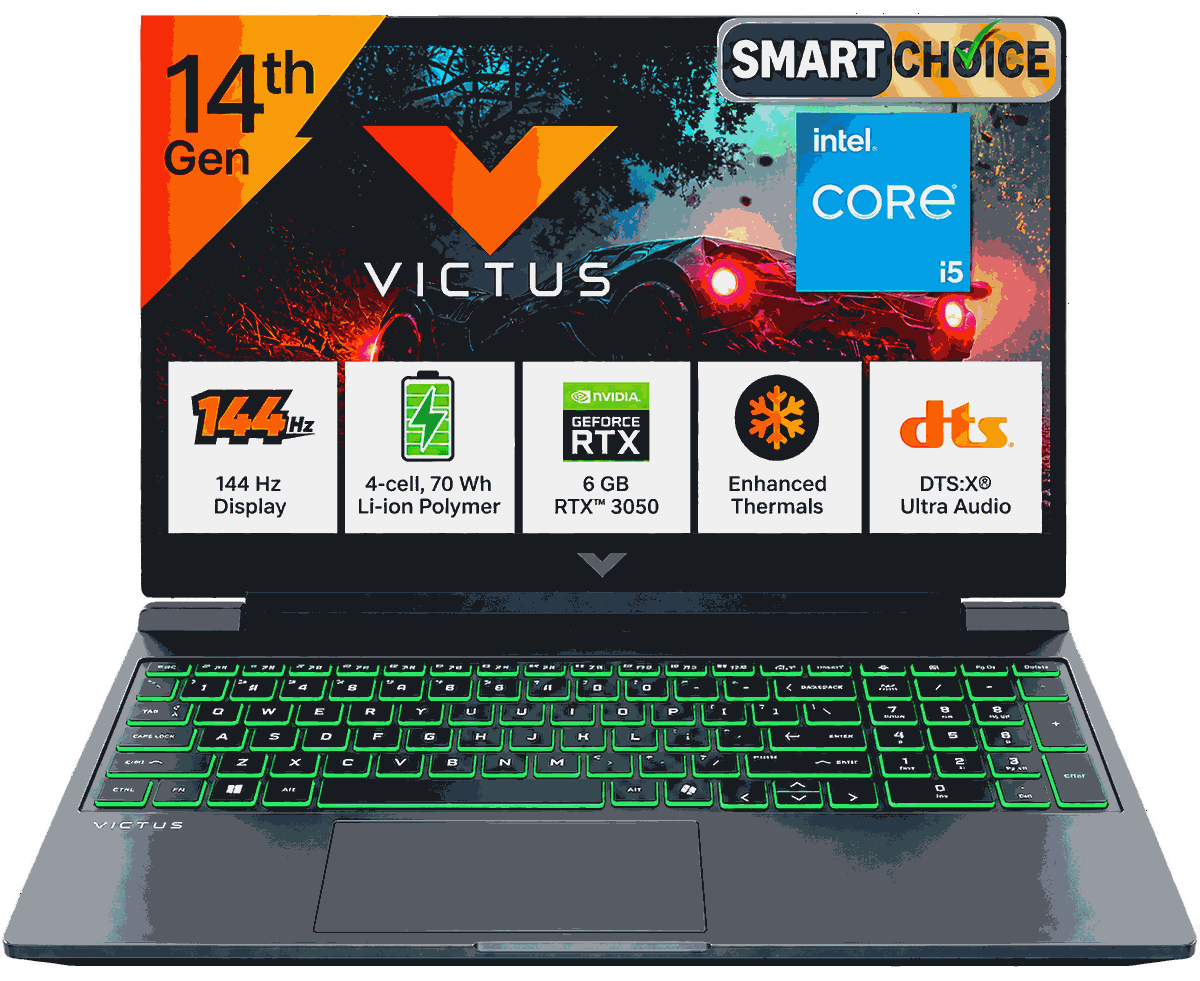
HP Victus Smartchoice
Best for: Buyers who can find a configuration with a suitable dedicated GPU.
The HP Victus family includes gaming-oriented laptops with different processor and graphics configurations. Models with a capable dedicated GPU can be worth considering for video editing, motion graphics and other GPU-accelerated workloads. Check the exact specifications before buying.
Why Consider It?
- A suitable dedicated GPU can accelerate supported creative workloads.
- Gaming-oriented cooling may help during sustained rendering, depending on the model.
- Some configurations support RAM and SSD upgrades.
- Can combine gaming performance with creative-work capabilities.
Not every HP Victus configuration is equally suitable for editing. Entry-level graphics, limited RAM or a display with restricted colour coverage may affect demanding creative work. Gaming models can also be heavier than thin-and-light laptops.
Buying advice: Look for 32GB RAM or upgradeable memory, a capable dedicated GPU, sufficient SSD storage and a display suited to your work. Verify the exact GPU model, VRAM, processor and display specifications rather than assuming all Smartchoice variants are identical.
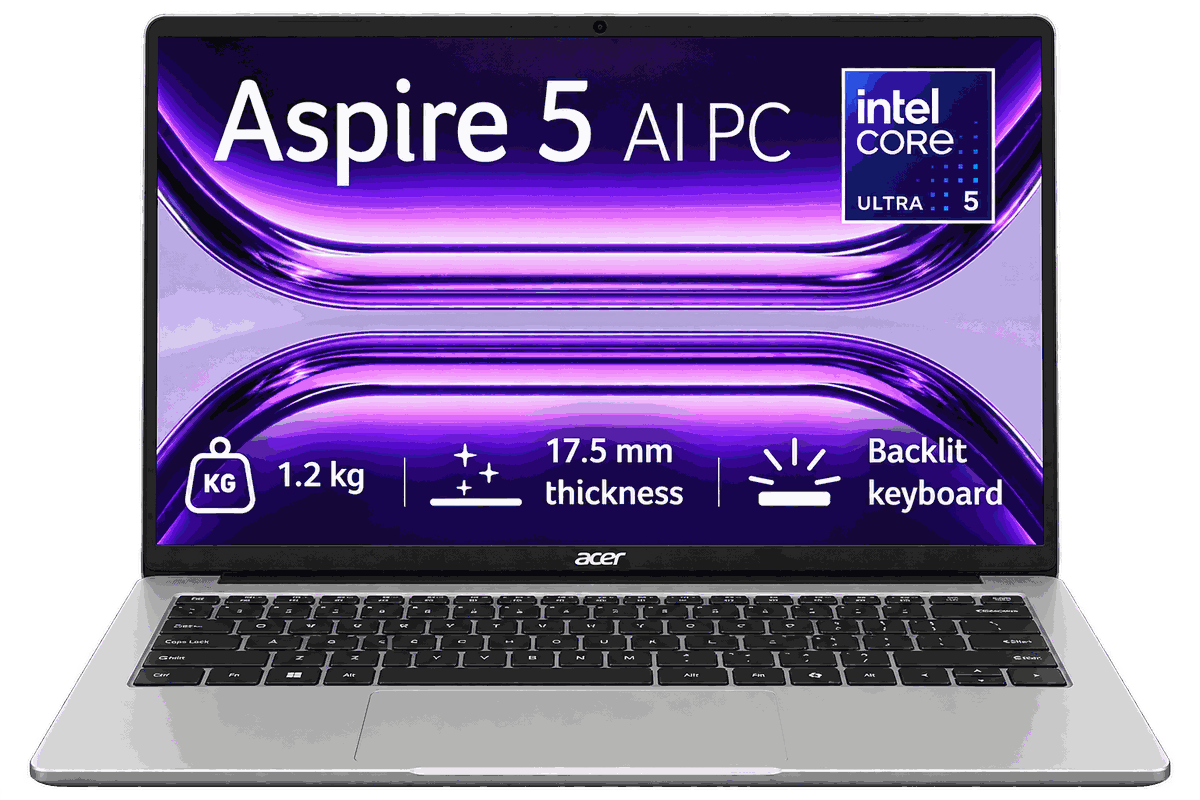
Acer Aspire 5 AI PC
Best for: General productivity and lighter creative workloads, depending on the configuration.
The Acer Aspire 5 range includes different laptop configurations, so the exact model matters when choosing a device for video editing. A processor with AI acceleration can support compatible AI features, but it does not automatically guarantee strong graphics performance.
Why Consider It?
- Can offer a practical balance of productivity and portability.
- A modern processor can handle basic editing and everyday multitasking.
- May suit students and creators working on lighter projects.
- Worth considering when the price and specifications meet your needs.
Models with integrated graphics may struggle with complex motion graphics, demanding GPU effects and heavy 3D workloads. Display quality, RAM capacity and upgrade options also vary by configuration.
Buying advice: Verify the complete model number, processor, RAM, SSD and display specifications before purchasing. For extensive After Effects work, prioritise sufficient memory and consider a laptop with a more capable dedicated GPU.
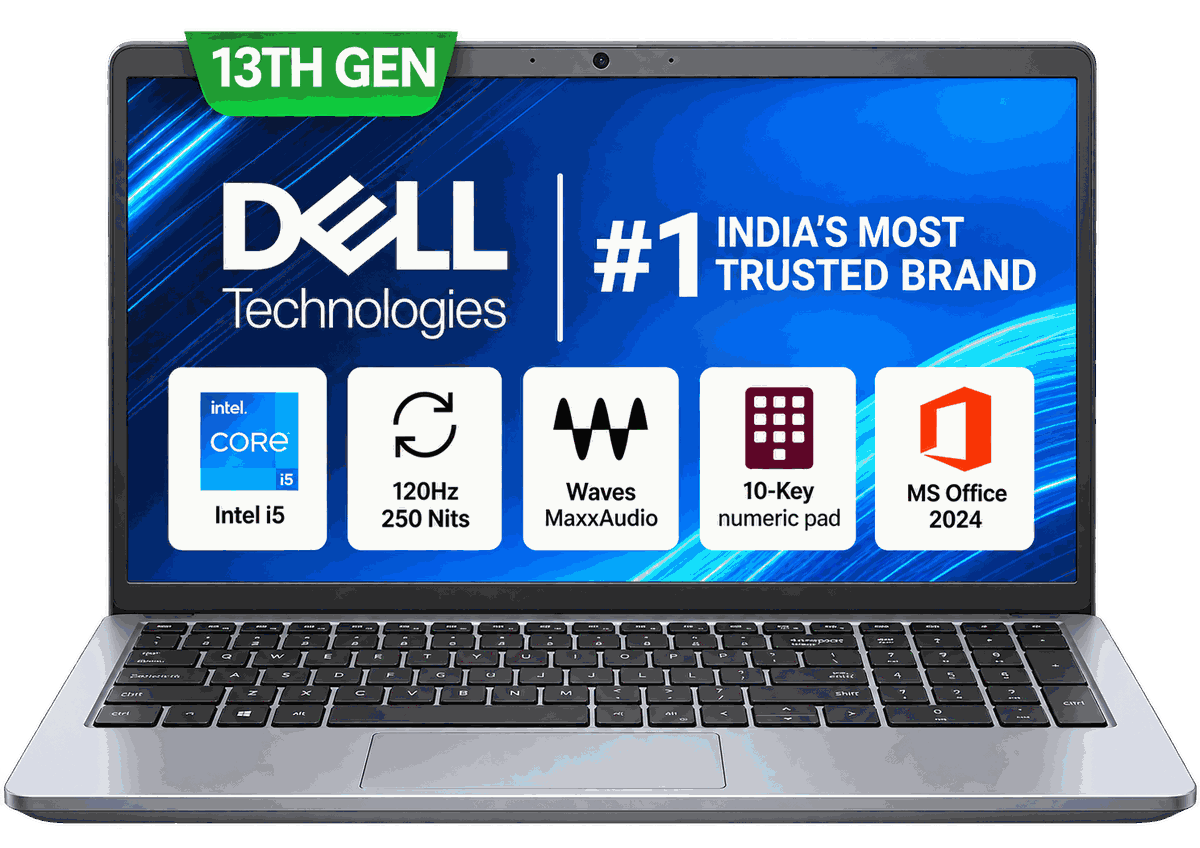
Dell 15 SmartChoice (Previously Inspiron)
Best for: General-purpose use and entry-level video editing, depending on the hardware configuration.
Dell’s consumer laptops are available in different configurations for everyday computing and productivity. A SmartChoice listing may refer to a specific retailer configuration or bundle, so check the exact model and installed hardware before purchasing it for creative work.
Why Consider It?
- Can be suitable for studying, office work and everyday computing.
- A suitable processor and SSD can support basic video editing.
- May handle straightforward creative workflows and occasional editing.
- Worth considering if general-purpose performance is your main priority.
A configuration without a sufficiently capable GPU may struggle with demanding motion graphics and complex effects. Display quality, installed RAM and memory upgrade options also depend on the exact model.
Buying advice: Confirm the processor, graphics, installed RAM, maximum supported RAM, SSD capacity and display specifications. Compare the complete configuration with similarly priced alternatives before making a decision.
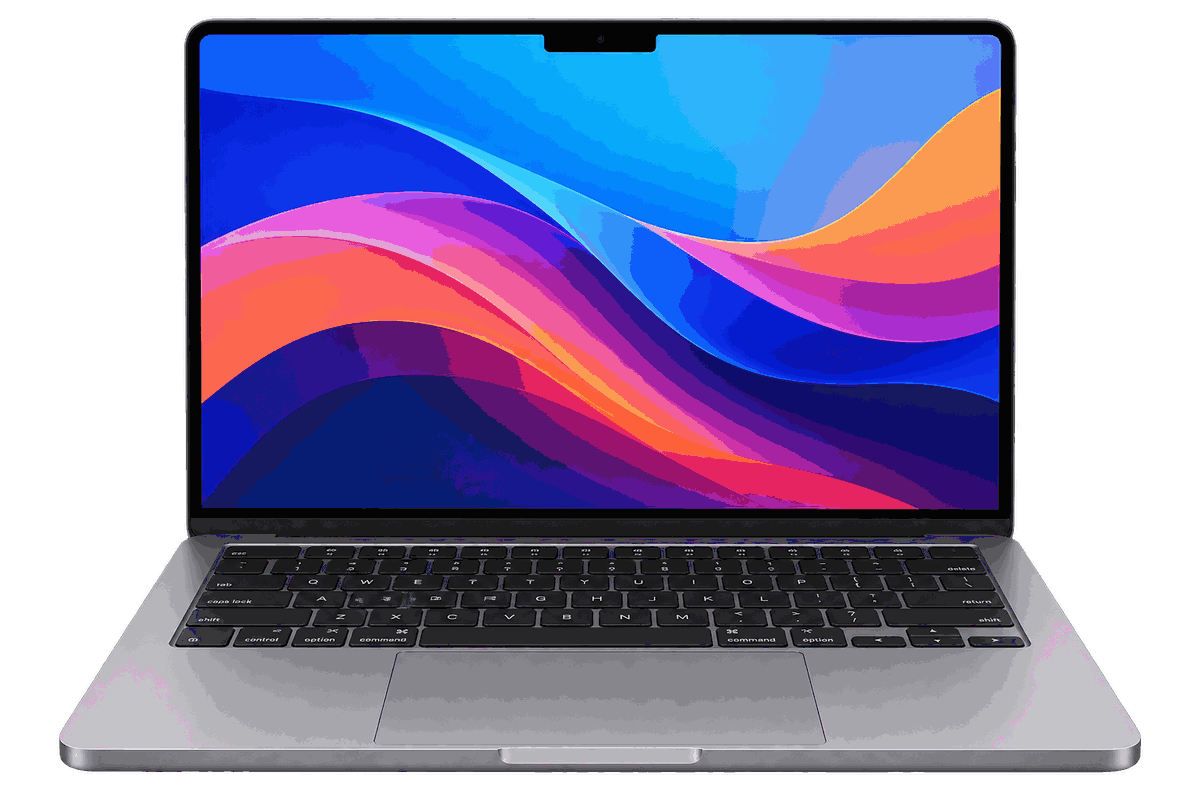
Apple MacBook Neo 13
Best for: Lightweight everyday computing and basic creative work, with important memory limitations.
The Apple MacBook Neo 13-inch combines a compact design with Apple’s A18 Pro chip, featuring a 6-core CPU, 5-core GPU and 8GB unified memory. It is worth considering for everyday tasks and lightweight editing, but demanding motion graphics require careful consideration of its memory and performance limits.
Key Specifications
- A18 Pro chip with a 6-core CPU and 5-core GPU
- 8GB unified memory
- 256GB or 512GB SSD storage options
- 13-inch display with 2408 × 1506 resolution
- Hardware-accelerated H.264, HEVC and ProRes support
- Compact design weighing approximately 1.23kg
The 8GB unified memory can constrain demanding After Effects projects, complex 4K editing and heavy multitasking. Buyers should not assume the memory can be upgraded later. The 256GB SSD may also fill up quickly when storing video footage and project files.
Buying advice: Consider the MacBook Neo for portability, everyday productivity and simple editing rather than as a dedicated motion graphics workstation. If you regularly use After Effects or work with complex projects, compare it with higher-memory MacBook models and suitable Windows creator laptops. Confirm application compatibility and the current Indian price before buying.
Laptop Comparison: Which One Should You Choose?
| Laptop | Most Suitable Use | Main Point to Check | Verdict |
|---|---|---|---|
| Dell 15 AI-Powered Laptop | General use and light editing | Integrated graphics, RAM and display | Consider for lighter workflows |
| HP Victus Smartchoice | Editing and motion graphics if suitably configured | Dedicated GPU, VRAM, RAM and cooling | Shortlist with the right specifications |
| Acer Aspire 5 AI PC | Productivity and basic editing | Exact processor, graphics and upgrade options | Suitable for lighter workloads if configured appropriately |
| Dell 15 SmartChoice (Previously Inspiron) | General computing and occasional editing | Exact CPU, GPU, RAM and display | Configuration-dependent Buy based on the actual specifications |
| Apple MacBook Neo 13 | Portability and basic creative work | 8GB unified memory and storage capacity | Not recommended as a primary machine for demanding motion graphics |
Which Matters More for Editing: CPU or GPU?
There is no universal winner. The CPU and GPU perform different jobs, and their relative importance depends on the software and effects you use.
| Task | Component to Prioritise | Why It Matters |
|---|---|---|
| Basic Timeline Editing | Balanced CPU, GPU and RAM | Multiple components contribute to a smooth editing workflow. |
| Video Encoding and Decoding | CPU and supported hardware media engines | Performance depends on the codec, hardware acceleration and software support. |
| GPU-Accelerated Effects | GPU | Compatible effects can use graphics processing to accelerate specific tasks. |
| After Effects Compositions | RAM and CPU, with GPU support where applicable | Memory capacity, CPU calculations and GPU-accelerated features all influence performance. |
| 3D Rendering | Depends on the renderer | CPU-based and GPU-based renderers have different hardware requirements. |
| Multitasking | RAM and CPU | Sufficient memory and processing power help keep applications and projects responsive. |
| Large Media Libraries | SSD capacity and storage management | Video footage, cache files and exported projects all require available storage space. |
For a Premiere Pro workstation, Adobe’s hardware guidance discusses RAM, GPU acceleration, storage and CPU performance as relevant factors. Its current system requirements recommend 32GB or more of RAM for 4K and higher-resolution work, along with 8GB of GPU memory for the recommended Windows configuration.
After Effects has its own requirements, including a 32GB-or-more RAM recommendation for 4K and higher-resolution work and 8GB of GPU memory in its recommended Windows specifications.
These are software recommendations, not a guarantee that every laptop meeting them will deliver the same performance.
Which Software Is Best for Video Editing and Motion Graphics?
The best software depends on what you want to create. Video editing, compositing, motion graphics and 3D animation are related but distinct activities.
Adobe Premiere Pro: Professional Video Editing
Premiere Pro is suitable for editing YouTube videos, interviews, documentaries, promotional videos and other timeline-based projects.
Choose it if you need:
- Multitrack timeline editing.
- Audio and video synchronisation.
- Transitions, titles and effects.
- Integration with other Adobe creative applications.
- A workflow built around editing and delivering finished videos.
Premiere Pro is a sensible option for creators who spend most of their time arranging footage and completing video projects.
Adobe After Effects: Motion Graphics and Visual Effects
After Effects is designed for motion graphics, compositing and visual effects rather than serving as the main editor for every long-form video.
Use it for:
- Animated titles and lower thirds.
- Logo animations.
- Motion design and kinetic typography.
- Compositing and masking.
- Motion tracking and visual effects.
- Short animated explainers and promotional graphics.
After Effects can be demanding because complex compositions may contain many layers, effects and high-resolution assets. For this type of work, sufficient RAM and a strong CPU are particularly important, while the GPU also matters for supported features.
DaVinci Resolve: Editing, Colour Grading and Finishing
DaVinci Resolve combines video editing, colour correction, visual effects and audio post-production in one application.
Consider it if you want:
- A combined editing and colour-grading workflow.
- Detailed colour correction.
- Audio post-production tools.
- A node-based compositing workflow through Fusion.
- An option with a free version, subject to the features and limitations of the current edition.
GPU performance can be especially important for demanding Resolve projects, although CPU performance, RAM, codecs and storage still affect the overall experience.
Blender: 3D Animation and Rendering
Blender is appropriate for 3D modelling, animation, motion design, visualisation and rendering.
Choose it if your work involves:
- 3D objects and scenes.
- Animated camera movements.
- Product visualisation.
- Simulations and visual effects.
- 3D assets for videos and advertisements.
For GPU rendering, verify that the laptop’s graphics hardware is supported by your chosen Blender version and render engine.
| Your Goal | Software to Consider | Why It Matters |
|---|---|---|
| Basic YouTube Videos | Premiere Pro or DaVinci Resolve | Provides timeline editing tools and options for exporting finished videos. |
| Short Social-Media Videos | A lightweight editor or Premiere Pro | Helps with straightforward trimming, titles and transitions. |
| Animated Text and Logos | After Effects | Offers specialised tools for motion graphics, animated text and logo effects. |
| Colour Grading | DaVinci Resolve | Includes a dedicated colour-grading workflow alongside video-editing tools. |
| 3D Animation | Blender | Supports 3D modelling, animation and rendering. |
| Full Creative Workflow | Premiere Pro plus After Effects | Combines video editing with specialised motion graphics and visual effects. |
Before subscribing or committing to a workflow, check the software’s current pricing, system requirements, operating-system compatibility and licensing terms.
Recommended Laptop Specifications by Workload
| Specification | Basic 1080p Editing | Regular 4K Editing | Demanding Motion Graphics |
|---|---|---|---|
| CPU | Modern mid-range processor | Strong modern processor | High-performance CPU |
| GPU | Integrated graphics may suffice | A dedicated GPU can be beneficial | A capable GPU is recommended for GPU-intensive work |
| RAM | 16GB | 32GB target | 32GB or more |
| SSD | 512GB starting point | 1TB target | 1TB–2TB or more, depending on project size |
| Display | Full HD or better | Good resolution and colour coverage | A colour-accurate display is preferred |
| Cooling | Adequate for occasional exports | Good sustained performance | Strong sustained performance is important |
These are practical buying targets, not rigid minimums. Some simple 4K workflows run on less powerful hardware, while complex effects can overwhelm much more expensive machines.
READ THIS ALSO: Best Laptop for Students in India (2026)
Common Video Editing Laptop Problems and Solutions
1. Timeline Playback Is Lagging
Possible causes: Insufficient RAM, demanding effects, high-resolution footage or slow media storage.
What to try:
- Close unnecessary applications.
- Reduce preview resolution.
- Generate proxies for demanding footage.
- Check whether hardware acceleration is enabled.
- Store active project files on a fast SSD.
2. After Effects Previews Are Slow
Possible causes: Limited RAM, complex compositions, high-resolution layers or expensive effects.
What to try:
- Preview a smaller section of the composition.
- Reduce preview resolution where appropriate.
- Close other memory-intensive applications.
- Review effects that consume substantial processing resources.
- Allow previews to cache and check available disk space.
3. Video Exports Take Too Long
Possible causes: CPU limitations, GPU limitations, software settings, unsupported hardware acceleration or thermal throttling.
What to try:
- Confirm that the correct export settings are selected.
- Check whether your codec supports hardware encoding on your laptop.
- Monitor temperatures and performance during export.
- Update supported graphics drivers where appropriate.
- Compare export times using a representative short section of the project.
4. The SSD Is Filling Up
Possible causes: Source footage, cache files, proxies, exported videos and project backups.
What to try:
- Move completed projects to external storage.
- Remove unnecessary temporary files using the application’s supported tools.
- Keep adequate free space on the working drive.
- Back up important projects before deleting media.
- Consider a larger SSD if your workflow consistently exceeds available capacity.
5. Colours Look Different on Other Screens
Possible causes: Display calibration, limited colour gamut, different display settings or colour-management differences.
What to try:
- Check the display’s documented colour coverage.
- Use a suitable colour-managed workflow.
- Avoid judging colour solely by how vivid it looks.
- Consider a calibrated external monitor for colour-critical work.
- Confirm export colour-space settings for the intended destination.
Final Verdict
The best laptop for video editing and motion graphics is the one whose hardware matches your actual workload.
Among the five requested options, the HP Victus Smartchoice is worth investigating first if you can find a configuration with a capable dedicated GPU, sufficient RAM and good cooling. The Dell 15 AI-Powered Laptop and Acer Aspire 5 AI PC are more conditional choices for lighter creative workloads unless their exact configurations offer the performance you need. The Dell 15 SmartChoice should be evaluated by its full specification rather than its retail label.
The Apple MacBook Neo 13 is attractive for portability and basic creative work, but its listed 8GB unified memory makes it a less suitable choice for demanding motion graphics and complex 4K projects.
For a new laptop intended for regular video editing and motion graphics, aim for 32GB RAM, a fast 1TB SSD and a capable CPU. Add a dedicated GPU when your software and workload benefit from one. If colour accuracy matters, pay attention to the display rather than choosing on processor specifications alone.
Finally, verify the current Indian price, complete model number, upgrade options and warranty before ordering. The right configuration is more important than the marketing name on the box.