
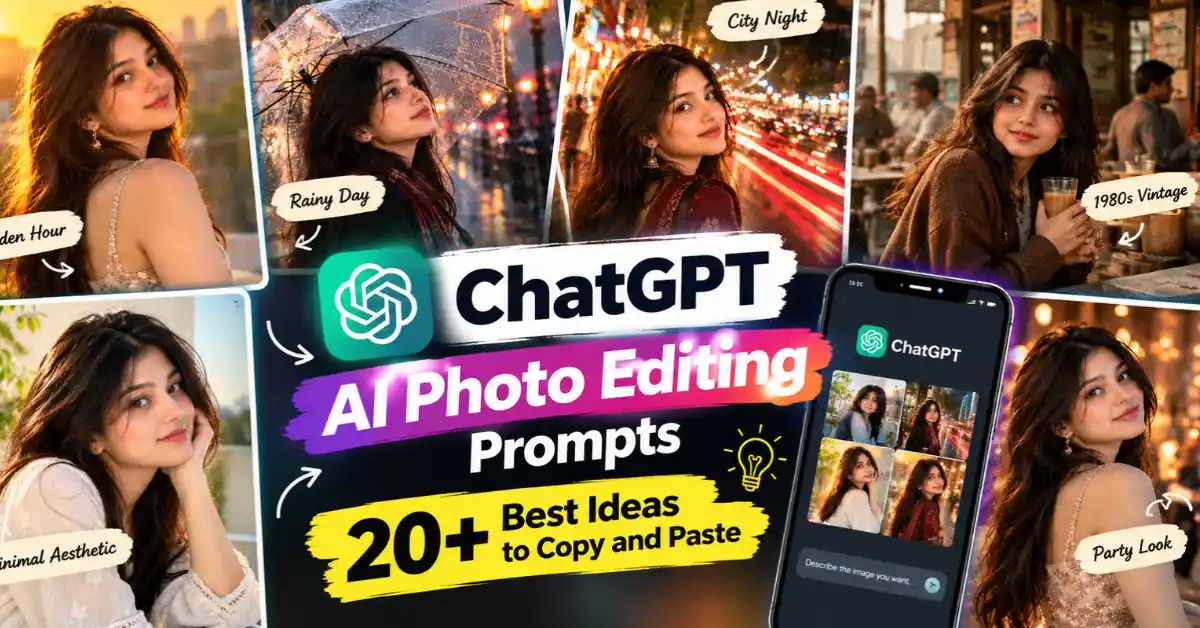
ChatGPT AI photo editing prompts are text-based instructions that guide ChatGPT in modifying uploaded photos or generating new images.Use ChatGPT to edit existing photos or generate new images in styles such as cinematic portraits, 1980s vintage, stylish portraits, long-exposure effects, motion blur, and aesthetic Instagram photography.
For better control over the outcome, specify the style, lighting, and background while identifying the original photo details that must be preserved.
Key takeaways
- Upload your photograph to ChatGPT and describe the changes you want.
- Use specific prompts instead of vague instructions such as “make my photo look better”.
- Specify which details must remain unchanged, including facial features, skin tone, hairstyle, and pose, where relevant.
- Try separate prompts for 1980s portraits, cinematic effects, long exposure, motion blur and aesthetic photography.
- Make one subtle adjustment at a time to keep unwanted changes to a minimum.
- Check the final image carefully because AI editing does not guarantee perfect preservation of every original detail.
What are ChatGPT AI photo editing prompts?
ChatGPT AI photo editing prompts are written instructions used to generate or modify images through ChatGPT’s image capabilities. For example, you can upload an ordinary selfie and ask ChatGPT to replace the background, improve lighting, change the overall colour palette or give the picture a vintage film appearance.
OpenAI’s documentation states that ChatGPT Images supports creating images from scratch and modifying existing photos. You can describe an edit in ordinary language and, where supported by the editor, select a specific area to modify.
The important distinction is that you do not need complicated technical commands. Start with a clear description of your intended outcome and specify the details that must remain unchanged.
How to use ChatGPT for photo editing
Follow these steps before trying the prompts below.
Step 1: Choose a suitable photograph
Select a reasonably clear photograph with visible facial features. Good lighting and an uncluttered image make it easier to judge the edits.
Step 2: Open ChatGPT Images
Open ChatGPT on the web or mobile app. Upload your photo using the attachment option, or open the Images feature where available.
Step 3: Copy a prompt
Select a prompt from this article, paste it into ChatGPT, and customise the colours, outfits, lighting, or background to suit your preferences.
Step 4: Review and refine
Check the face, hands, clothing, background and image framing. Request a specific correction if something changes unexpectedly.
OpenAI provides instructions for uploading images, editing through natural-language prompts, selecting areas and saving the result. Available controls may vary by interface and account.
| Element | What to Specify | Example |
|---|---|---|
| 01 Subject | What should remain recognisable | My uploaded portrait |
| 02 Main Change | The principal edit | Replace the background |
| 03 Style | The desired appearance | Cinematic, vintage or natural |
| 04 Lighting | The atmosphere | Soft window light or neon lighting |
| 05 Preservation | What must not change | Face, hairstyle, pose and skin tone |
You can use this reusable template:
Copy-and-paste template
Edit the photograph I uploaded. Change [specific element] to create a [desired visual style] look. Use [lighting and colour palette] and [background or setting]. Keep the person’s distinctive facial features, skin tone, hairstyle, expression, pose, and body proportions unchanged.Keep the result realistic, with natural textures and believable shadows. Do not add unnecessary objects or text. Use a [preferred aspect ratio] composition.
Replace the bracketed sections with your requirements. Do not include every possible effect at once; start with the most important change and refine the result afterwards.
1. AI portrait prompts for boys and men
These prompts are suitable for young adult men who want stylish profile photos, cinematic portraits or smart-looking social-media pictures. You can adjust the clothes and surroundings to match your personal style.
Prompt 1: Cinematic male portrait
Cinematic Portrait
A cinematic portrait prompt for your next creation.
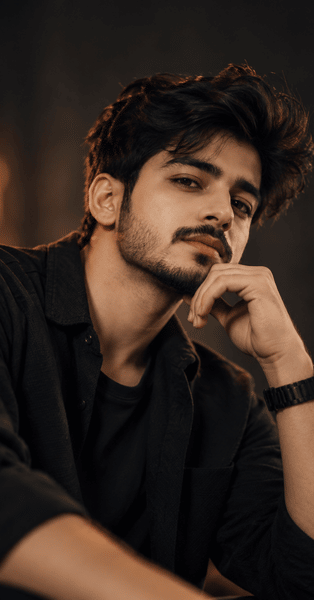 PORTRAIT / 01
TECHYWALA
Cinematic Male Portrait
Tip: Upload your photo separately to your AI image editor, then paste this prompt.
Prompt 2: Professional studio portrait
Professional Studio Portrait
A clean, polished look for professional profiles.
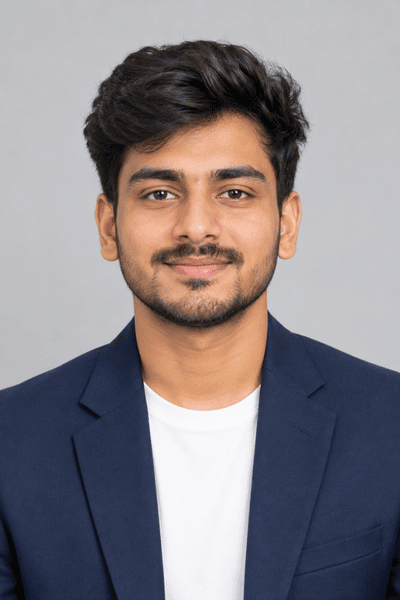
Professional Studio Portrait
Upload your photo to an AI image editor, copy this prompt and paste it into the conversation. Results may vary depending on the tool and source photo.
Prompt 3: Streetwear editorial portrait
Streetwear Editorial Portrait
Modern urban style with a cinematic finish.
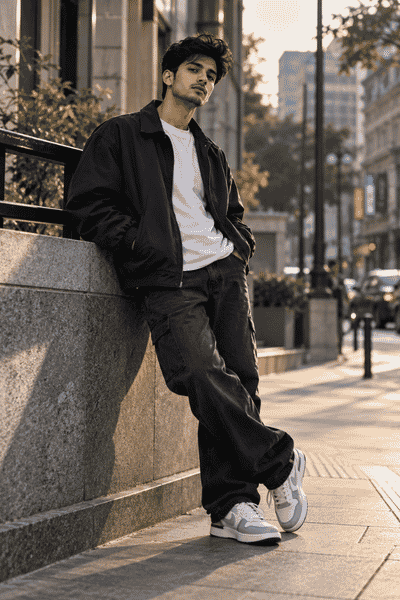
Urban Streetwear Editorial
Upload your photo to an AI image editor, copy this prompt and paste it into the conversation. Results may vary depending on the source photo and AI tool.
2. ChatGPT photo editing prompts for girls and women
These prompts focus on natural lighting, elegant colours and creative backgrounds. You can change the outfit or mood without automatically changing the person’s facial structure
Prompt 4: Soft aesthetic portrait
Soft Aesthetic Portrait
Warm lighting and a gentle, natural finish.
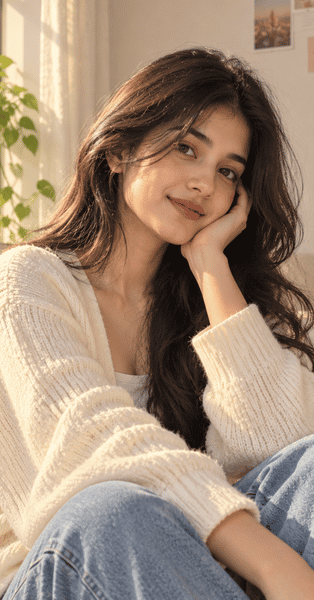
Soft Natural Portrait
Upload your photo to an AI image editor, copy this prompt and paste it into the conversation. Results may vary depending on the original photo and AI tool.
Prompt 5: Cinematic night portrait
Cinematic Night Portrait
Moody city lights with a cinematic finish.
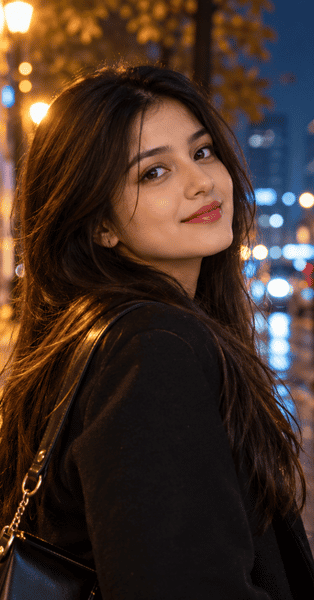
Cinematic City Night
Upload your photo to an AI image editor, copy this prompt and paste it into the conversation. Results may vary depending on the original photo and AI tool.
Prompt 6: Traditional Indian festive portrait
Traditional Indian Festive Portrait
Elegant ethnic style with warm, festive lighting.
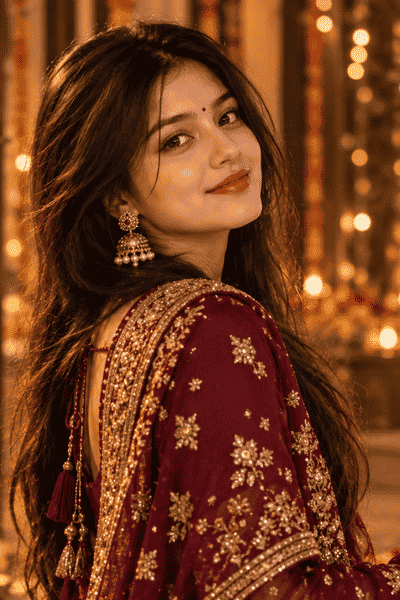
Traditional Festive Portrait
Tip: Change the outfit colours and background to match Diwali, a wedding, a family celebration or another festive occasion.
3. 1980s AI photo editing prompts
A convincing 1980s-inspired photograph needs more than a filter. Think about period-appropriate clothing, film grain, colour casts, hair styling, lighting and the setting.
These prompts create a 1980s-inspired visual treatment, not a guarantee that an image will reproduce the look of a particular film camera or photograph.
Prompt 7: Classic 1980s retro portrait
Classic 1980s Retro Portrait
Vintage film aesthetics with nostalgic colours and soft lighting.
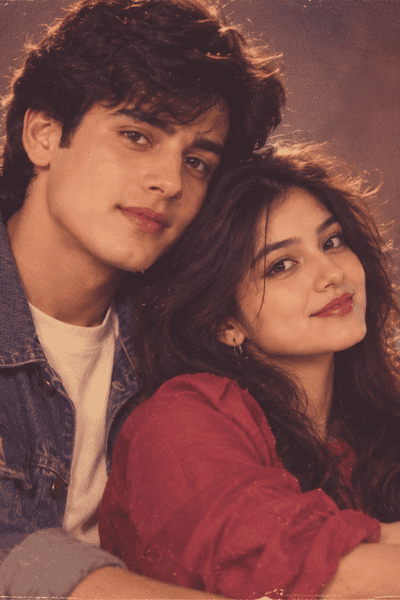
Classic Vintage Film Portrait
Tip: Try this prompt with a couple’s photo to create a nostalgic 1980s studio portrait with vintage outfits and classic film colours.
Prompt 8: 1980s Indian chai-stall look
1980s Indian Chai-Stall Look
Nostalgic Indian street photography with authentic vintage details.
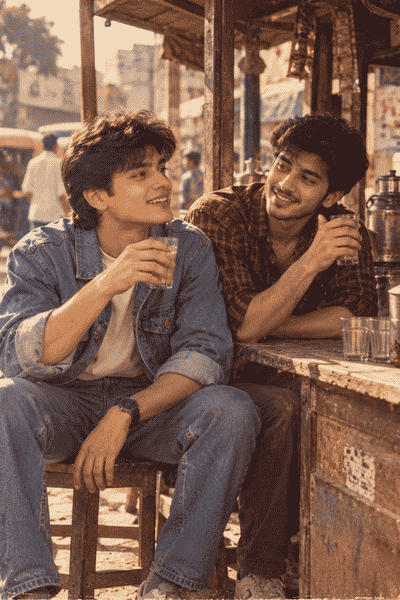
Vintage Indian Chai Stall
Tip: Try earthy brown clothing, an old-fashioned tea glass and a rustic roadside setting for a stronger 1980s Indian street-photography aesthetic.
4. Prompts for long exposure photography
Long exposure is a photographic technique that records movement over time. An AI prompt can create a similar visual effect, but the result is a generated or edited interpretation of long-exposure photography—not an actual long exposure captured by a camera shutter.
Prompt 10: Night traffic light trails
Night Traffic Light Trails
Cinematic long-exposure effects for urban night photography.
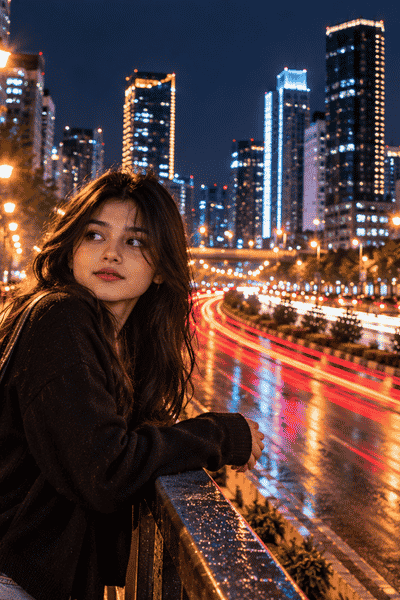
Cinematic Long-Exposure Street
Tip: Use a city photograph with visible roads and moving traffic to create more convincing long-exposure light trails.
Prompt 11: Indian market at night
Indian Market at Night
Busy evening street photography with realistic motion effects.

Cinematic Indian Street Scene
Tip: Specify which objects should remain sharp and which should appear to move. This helps create a more convincing long-exposure effect.
5. Aesthetic photo editing prompts
“Aesthetic” can mean different things to different people. To get a more predictable result, name the colour palette, lighting, atmosphere and degree of editing you prefer.
Golden-Hour Aesthetic
Warm natural sunlight with soft, cinematic portrait lighting.
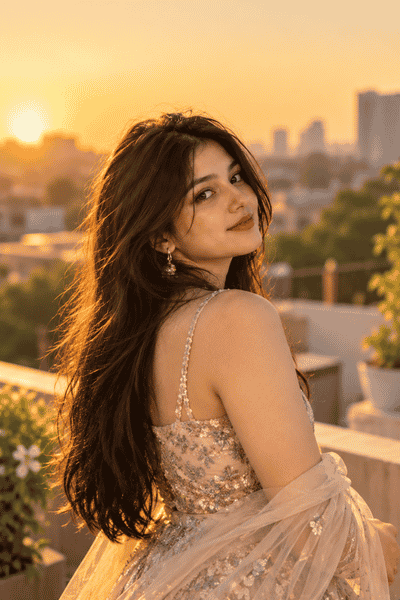
Warm Golden-Hour Portrait
Tip: Outdoor photos taken near sunset or on a rooftop can produce a more natural golden-hour effect.
Moody Rainy-Day Portrait
Cinematic monsoon atmosphere with cool tones and natural reflections.
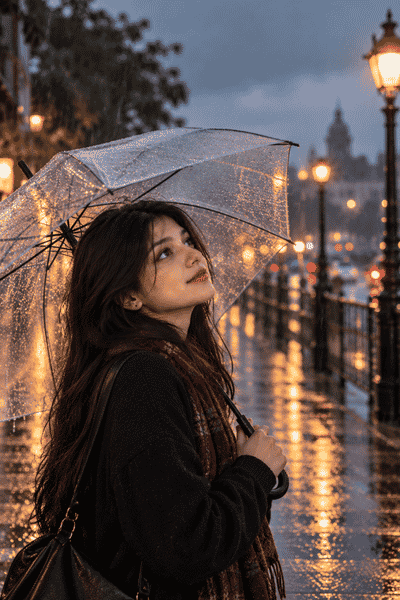
Cinematic Monsoon Portrait
Tip: Use a portrait with a visible outdoor background to create a more convincing rainy-day atmosphere and natural reflections.
Prompt 17: Minimal, clean Instagram aesthetic
Minimal, Clean Instagram Aesthetic
Simple composition with soft lighting and natural colour grading.
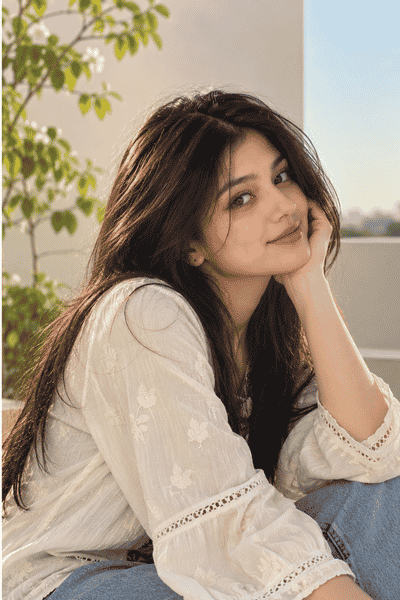
Minimal Lifestyle Portrait
Tip: Choose a photograph with a simple background and good natural light for a cleaner, more balanced Instagram aesthetic.
How to improve an AI-edited photograph
If the first result is close but not quite right, avoid sending an entirely new, complicated prompt. Tell ChatGPT which single detail needs adjusting and which parts must remain unchanged.
For example:
To restore the original face
The background and lighting are good. Please revise the edit to keep my facial features, skin tone, hairstyle and expression closer to the original uploaded photograph. Do not make any other changes.
To reduce excessive editing
Make this edit more natural. Reduce the colour intensity, skin smoothing and artificial glow. Preserve the current composition, original clothing and recognisable facial features.
To fix the background
Keep the subject unchanged and refine only the background. Correct the lighting, remove visible editing artefacts and make the edges around the hair and shoulders more natural.
To change the aspect ratio
Reframe this image into a 4:5 vertical composition suitable for an Instagram feed post. Keep the subject’s complete head and shoulders visible. Extend or adjust the background naturally without unnecessarily changing the person.
When an edit affects only a small area, consider using ChatGPT’s image editor selection tool where available. OpenAI notes that selected regions are not always precise and changes can extend outside the highlighted area, so inspect the whole image after editing.
Common mistakes to avoid
- Using vague instructions: “Make it aesthetic” leaves many creative decisions unspecified. Name the style and the changes you want.
- Combining too many effects: Mixing a vintage look, neon lighting, motion blur and heavy retouching in one instruction can produce an inconsistent image.
- Assuming facial preservation is guaranteed: Even explicit instructions may not prevent some changes to faces or fine details.
- Over-editing skin: Excessive smoothing can make an otherwise attractive portrait look artificial.
- Ignoring hands and background details: Review the final image at full size, particularly around fingers, hair edges, jewellery and signs.
- Forgetting the output format: Choose a suitable composition for the intended platform, but check the final dimensions rather than relying only on the prompt.
Privacy considerations before uploading a photograph
Before sharing a personal image, consider whether it contains sensitive information, other people’s faces, identity documents, home addresses or location details.
OpenAI’s consumer-service data settings allow eligible users to control whether new conversations are used to improve its models. On the web, the current documented path is Settings → Data Controls → Improve the model for everyone. Review the official policy because data handling depends on the service and account type.
Use photographs you own or have permission to edit. For professional, identity-related or commercial images, verify important details manually before using the edited output.
Final takeaway
The best ChatGPT AI photo editing prompts describe a clear visual goal and state what must stay the same. Start with one style, preserve important facial and scene details, and refine the result through specific follow-up instructions. This approach makes the prompt library more useful than simply copying a long description filled with fashionable photography terms.
READ THIS ALSO: AI Image and Video Tools for Free: 10 Best Picks (2026)
10.FAQ
The following FAQ section can be added to the article after the final takeaway.
1. What are the best ChatGPT AI photo editing prompts?
The best prompts clearly describe the change you want, the visual style, the lighting and the details you want to preserve. For portraits, specify facial features, skin tone, hairstyle and expression. For cinematic pictures, describe the setting, colour palette and background effects. Start with one main edit and adjust the result with short follow-up instructions.
2. Can I edit an existing photo using ChatGPT?
Yes. ChatGPT Images supports uploading an existing photograph and describing the changes you want. You can request lighting adjustments, background replacements, portrait styling and other creative edits. The available image editor may also let you select a specific area. Always review the finished image because the edit may affect details outside the intended area.
3. Can I use ChatGPT photo editing prompts for free?
OpenAI’s current documentation lists ChatGPT Images as available across its plans, including Free. However, usage limits and access to particular features can vary. Check the current options and notices in your ChatGPT account rather than assuming you can generate an unlimited number of images for free.
4. How can I make my photo look like the 1980s?
Use a prompt that specifies period-inspired clothing, faded colours, analogue film grain, softer highlights and vintage lighting. You can also describe a specific setting, such as an old photo studio or an Indian roadside chai stall. Ask ChatGPT to keep the effect subtle if you want a believable vintage photograph rather than an exaggerated retro filter.
5. Which ChatGPT prompt is best for boys’ portraits?
A cinematic or professional portrait prompt is a useful starting point. Describe the intended outfit, background, lighting and framing, then ask ChatGPT to preserve the person’s recognisable facial features and natural skin texture. For a casual style, choose an urban setting and muted colours. For a formal photograph, use a plain background and soft, even lighting.
6. Which ChatGPT photo editing prompt is best for girls?
For a soft aesthetic portrait, specify natural window light, a clean background, gentle colour grading and realistic skin texture. For a dramatic look, describe cinematic lighting and a softly blurred night-time background. Choose details according to the desired style rather than adding every popular effect. Explicitly ask the editor to avoid unnecessary facial reshaping or excessive smoothing.
7. What is the difference between long exposure and motion blur?
Long exposure records light and movement over a period of time, often creating continuous light trails or blurred moving objects. Motion blur refers to the visual blur caused by movement relative to the camera. An AI prompt can simulate either appearance, but it does not turn the source photograph into a genuine camera exposure captured with a particular shutter speed.
8. Why does ChatGPT change my face when editing a photo?
An AI image edit may regenerate some image details rather than preserve every original pixel exactly. As a result, facial features, hair, skin texture or other details may shift. Tell ChatGPT which characteristics should stay unchanged, simplify the requested edit, and compare the result with the original. If identity accuracy is essential, do not rely on an AI-generated image without reviewing it carefully.