
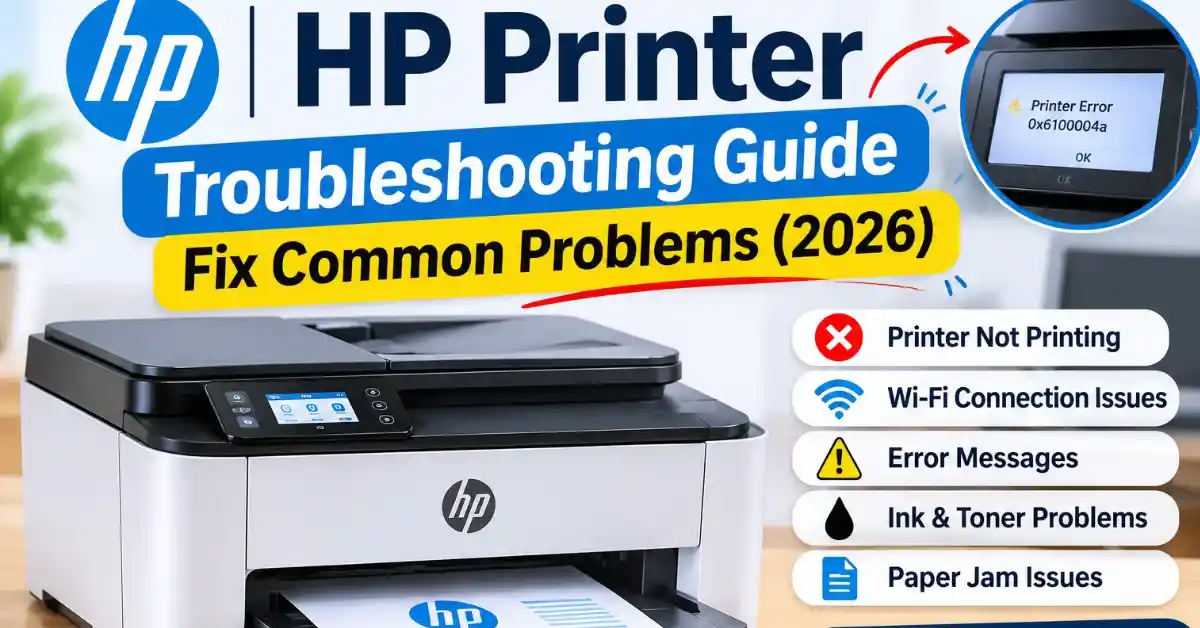
If your HP printer is not printing, disconnecting from Wi-Fi, producing blank pages or showing an error message, start by checking its power supply, paper, ink or toner, and connection. Restart the printer, clear stuck print jobs, verify the printer settings and update its drivers if necessary. For persistent problems, use the HP app or official HP Support troubleshooting tools.
Key Takeaways
- Restart your HP printer and computer before trying advanced solutions.
- Check the Wi-Fi connection if wireless printing is not working.
- Clear the print queue when documents get stuck.
- Check ink levels, cartridges and printheads if pages come out blank.
- Download drivers and firmware from official HP sources.
- Some error codes indicate internal hardware problems that require servicing.
Introduction
HP printers are commonly used in Indian homes, schools, offices and small businesses. However, problems such as printer offline messages, failed print jobs, wireless disconnections and poor print quality can interrupt everyday work.
The cause may be something simple, such as an incorrect printer setting, or a more serious issue involving the printhead, cartridge, firmware or internal components.
This HP printer troubleshooting guide explains how to identify and resolve common printing problems with practical instructions for Windows computers and wireless printers.
1. Basic Checks Before Troubleshooting
Before changing printer settings or reinstalling drivers, perform these basic checks.
| What to Check | What to Do |
|---|---|
| Power supply | Confirm that the printer is switched on and properly connected. |
| Paper tray | Load clean, flat paper without exceeding the tray limit. |
| Ink or toner | Check the remaining ink or toner level. |
| Cartridge installation | Ensure cartridges are correctly installed. |
| Printer display | Look for error messages or warning lights. |
| USB connection | Disconnect and reconnect the cable if using USB. |
| Wi-Fi connection | Confirm that the printer is connected to the correct network. |
2. HP Printer Not Printing: How to Fix It
If your HP printer is not printing despite being switched on, check the print queue, default printer settings, connection and driver. Try these solutions in order.
1 Step 1: Restart Your Printer
- Switch off the HP printer.
- Disconnect its power cable.
- Wait approximately 30 seconds.
- Reconnect the cable.
- Switch on the printer and wait until it becomes ready.
2 Step 2: Clear the Print Queue
A stuck document can prevent other print jobs from processing.
On Windows 11:
- Open Settings.
- Select Bluetooth & devices.
- Click Printers & scanners.
- Select your HP printer.
- Open the print queue.
- Cancel pending documents.
- Send a new print request.
3 Step 3: Set HP as the Default Printer
Windows might send documents to another printer or a virtual PDF printer.
- Open Settings.
- Select Bluetooth & devices.
- Open Printers & scanners.
- Select your HP printer.
- Choose Set as default, if available.
4 Step 4: Restart the Print Spooler
The Print Spooler is a Windows service that manages print jobs.
- Press Windows + R.
- Type
services.msc. - Press Enter.
- Find Print Spooler.
- Right-click it.
- Select Restart.
5 Step 5: Update the Printer Driver
An outdated or corrupted driver can prevent Windows from communicating correctly with the printer.
Visit HP’s official support page and enter your printer model to find compatible software.
Download HP Printer Drivers →3. HP Printer Wi-Fi Connection Problems: How to Fix Them
HP printer Wi-Fi connection problems can occur after changing your router, updating network settings, changing your Wi-Fi password or experiencing a power interruption. Try the following solutions.
1 Step 1: Check the Wireless Connection
- Make sure the printer’s wireless feature is enabled.
- Check whether the Wi-Fi indicator is on or blinking.
- Confirm that the printer is connected to your intended network.
- Keep the printer reasonably close to the router during setup.
2 Step 2: Restart Your Router
- Turn off the printer.
- Disconnect the router’s power supply.
- Wait around 15 seconds.
- Reconnect the router.
- Wait until the Wi-Fi network becomes available.
- Turn on the printer.
3 Step 3: Check the Wi-Fi Network
Your computer and printer generally need to be on the same local network for normal wireless discovery.
Some HP models support only particular Wi-Fi bands or network configurations. Check your printer’s specifications before changing router settings.
4 Step 4: Reconnect the Printer to Wi-Fi
If the printer has lost its wireless connection:
- Open the wireless or network settings on the printer.
- Select Wireless Setup Wizard, if available.
- Choose your Wi-Fi network.
- Enter the correct password.
- Complete the connection process.
- Check the printer’s wireless status.
5 Step 5: Use the HP App
Install or open the official HP app and follow its printer setup instructions.
The app can help discover supported printers, complete setup and diagnose certain connection and printing problems.
Download the official HP app to set up supported printers and troubleshoot connection issues.
Get the HP App →4. HP Printer Printing Blank Pages: How to Fix It
An HP printer printing blank pages may have empty ink cartridges, clogged printhead nozzles, incorrectly installed cartridges or a problem with the document itself. Try these fixes.
1 Step 1: Check the Ink or Toner Level
Open the HP app or printer control panel and check the available ink or toner.
If the cartridge is empty, replace it with a compatible cartridge recommended for your printer.
2 Step 2: Check Cartridge Installation
If you recently installed a new cartridge:
- Check whether protective tape has been removed.
- Confirm that the cartridge is compatible with your model.
- Reinstall it according to the printer manual.
- Make sure the cartridge access door is properly closed.
3 Step 3: Clean the Printhead
Inkjet printers can develop clogged nozzles, particularly after long periods without printing.
Use the printer’s built-in Clean Printhead or Printhead Cleaning option, if available.
- Open the printer maintenance settings.
- Find the Printhead Cleaning option.
- Start the cleaning process.
- Wait until the process finishes.
- Print a test page after cleaning.
4 Step 4: Check the Document and Print Settings
Sometimes the printer works correctly, but the document or application has a problem.
- Open another document.
- Check whether the original file contains text or images.
- Verify the selected paper size.
- Check print preview.
- Make sure the correct printer is selected.
5 Step 5: Check Laser Printer Components
For HP LaserJet printers, blank pages can result from toner cartridge problems or internal components.
- Check whether the toner cartridge is installed correctly.
- Confirm that the toner cartridge is compatible with your model.
- Check for any remaining protective packaging.
- Follow the model-specific maintenance instructions.
5. HP Printer Printing Slowly: How to Improve Print Speed
Slow printing can result from high-quality print settings, large documents, network delays, outdated drivers or printer processing limitations.
Try these solutions:
| Possible Cause | Recommended Solution |
|---|---|
| High print quality | Select Normal or Draft quality when suitable. |
| Large documents | Print smaller sections or reduce image size. |
| Slow Wi-Fi | Test printing through a USB connection if supported. |
| Outdated driver | Install the compatible driver from HP. |
| Incorrect paper settings | Match the paper type and size to the loaded paper. |
| Background print jobs | Clear unnecessary pending jobs. |
For everyday text documents, Draft or Normal mode can reduce processing and printing time.
For photographs and detailed graphics, higher-quality settings may be necessary.
Microsoft also recommends checking print quality, network connections, firmware and document complexity when troubleshooting slow printing.
6. HP Printer Not Detected by Computer: How to Fix It
If your HP printer is not detected by your computer, the problem may involve a USB cable, wireless connection, driver or Windows device configuration.
1 For USB Printers
If your HP printer is connected through USB, try these solutions:
- Disconnect the USB cable.
- Reconnect it securely to both devices.
- Try another USB port.
- Avoid using a faulty USB hub.
- Restart the printer and computer.
- Check whether Windows recognises the device.
2 For Wireless Printers
If your HP printer is connected wirelessly, follow these steps:
- Confirm that the printer is connected to Wi-Fi.
- Check that your computer uses the same local network.
- Restart the router and printer.
- Open Windows Settings.
- Select Bluetooth & devices, followed by Printers & scanners.
- Choose Add device and follow the instructions.
3 Reinstall the Printer
If Windows still cannot recognise the printer, removing and adding it again may resolve the issue.
- Open Printers & scanners.
- Select the problematic HP printer.
- Choose Remove device.
- Restart your computer.
- Download the correct software from HP Support.
- Add the printer again.
Visit HP Support to find the correct printer drivers and software for your specific model.
Visit HP Driver Support →7. HP Printer Error Code Troubleshooting
HP printers can display different error codes depending on the printer series and internal components.
The following table explains the three error codes included in this guide.
| HP Printer Error | What It Indicates | Recommended Action |
|---|---|---|
| 0x6100004a | Printer failure that can occur following a paper-jam message on certain OfficeJet models. | Check for paper obstructions and ensure the cartridge access door is properly closed. |
| Error 79 | Internal firmware error, commonly associated with LaserJet printers. | Restart the printer, disconnect network or USB cables if needed, and check for firmware updates. |
| Error 59.F0 | Transfer alienation failure involving an internal printer mechanism. | Restart the printer and contact authorised support if the error persists. |
How to Fix Common HP Printer Error Codes
HP printer error codes can indicate paper path obstructions, firmware problems or internal mechanical failures. Below are some common HP printer errors and their possible solutions.
1 How to Fix HP Printer Error 0x6100004a
HP documents this error for certain OfficeJet All-in-One printers. It may occur due to a printer mechanism or paper path problem.
Try the following solutions:
- Check whether paper fragments or other obstructions are present in the paper path.
- Make sure the paper path cover is properly installed.
- Ensure that the cartridge access door closes completely.
- Follow HP’s model-specific cartridge and power-reset instructions if the error remains.
2 How to Fix HP Printer Error 79
Error 79 generally indicates an internal firmware error. Restarting the printer and checking for available firmware updates may help.
Follow these steps:
- Turn off the printer.
- Wait at least 30 seconds.
- Turn it on again.
- If the error remains, disconnect USB and network cables.
- Restart the printer without those connections.
- Check whether a firmware update is available for your model.
Visit the official HP support website for troubleshooting instructions and firmware information.
Visit HP Support →3 How to Fix HP Printer Error 59.F0
HP identifies error 59.F0 as a transfer alienation failure. It is an internal mechanical error rather than a normal Windows or Wi-Fi problem.
Try restarting the printer:
- Switch off the printer.
- Wait at least 30 seconds.
- Connect it directly to a suitable wall socket if it was using a surge protector.
- Switch it on again.
If restarting does not resolve the error, contact HP support for further diagnosis and repair options.
Contact HP Support →8. How to Prevent Common HP Printer Problems
Regular maintenance can reduce printing interruptions and help maintain consistent print quality.
| Maintenance Task | Recommended Practice |
|---|---|
| Printhead cleaning | Run only when print quality problems appear. |
| Paper storage | Store paper in a dry, clean place. |
| Cartridge inspection | Check ink or toner levels periodically. |
| Printer software | Keep compatible drivers and firmware updated. |
| Paper tray | Avoid overloading it. |
| Exterior cleaning | Use a soft, dry cloth. |
| Printer usage | Print occasionally if recommended by your model’s manual. |
Indian weather consideration: During the monsoon, humidity can affect paper storage and feeding. Keep unused paper sealed in its packaging and avoid loading damp or curled sheets into the printer.
9. When Should You Contact HP Customer Support?
When to Contact HP Support
Contact HP or an authorised service centre if:
- The printer repeatedly displays an internal hardware error.
- The printer makes unusual grinding or mechanical noises.
- The paper-feed mechanism is physically damaged.
- The printer has a persistent printhead or internal component failure.
- The printer does not power on despite checking the power supply.
- The same error returns after following the official troubleshooting instructions.
Visit the official HP support page for model-specific troubleshooting instructions, drivers, warranty information and contact options.
Visit HP Printer Support10.FAQ
The following questions cover additional searches related to HP printer troubleshooting.
1. How do I reset my HP printer?
Turn off your HP printer, disconnect its power cable and wait approximately 30 seconds. Reconnect the cable and turn the printer on. This performs a basic power reset. A factory reset is different and can erase saved network settings, so follow the instructions for your specific printer model.
2. Why does my HP printer show offline even when connected to Wi-Fi?
Your printer may have lost communication with the computer, received a different network address or entered an offline state in Windows. Check its wireless connection, restart the router and printer, and disable Use Printer Offline if enabled.
3. How do I connect my HP printer to a new Wi-Fi network?
Open the wireless settings on your HP printer, select Wireless Setup Wizard if available, choose your new network and enter its password. Alternatively, use the HP app to complete the supported wireless setup process.
4. Why is my HP printer printing faded text?
Faded printing can result from low ink, insufficient toner, clogged inkjet nozzles or incorrect print-quality settings. Check the ink or toner level first. For inkjet models, run a printhead cleaning cycle if necessary.
5. How do I update HP printer drivers?
Visit the official HP Support website, search for your printer model and select the compatible driver for your operating system. Download and install the recommended software, then restart your computer if required.
6. Can I use an HP printer without Wi-Fi?
Yes. Many HP printers support USB connections, allowing you to print directly from a compatible computer without connecting the printer to a wireless network. However, connection options vary by model.
7. Why does my HP printer keep disconnecting?
Frequent disconnections may be caused by weak Wi-Fi signals, router problems, incompatible network settings or outdated printer firmware. Move the printer closer to the router and check its wireless configuration.
8. Why does my HP printer print blank pages after installing new ink?
The protective tape may still cover the cartridge nozzles, the cartridge may not be installed correctly, or the printhead may be clogged. Check the cartridge installation and run the printer’s cleaning utility if needed.
9. How can I fix an HP printer paper jam?
Switch off the printer and follow the model’s paper-jam removal instructions. Remove accessible paper slowly in the recommended direction. Check for small torn pieces before restarting. Never pull paper forcefully or touch hot internal components.
10. Why is my HP printer not printing from my mobile phone?
Check that your phone and printer are connected to a compatible local network. Confirm that the printer is supported by the HP app or your mobile printing method. Restart both devices and try printing again.