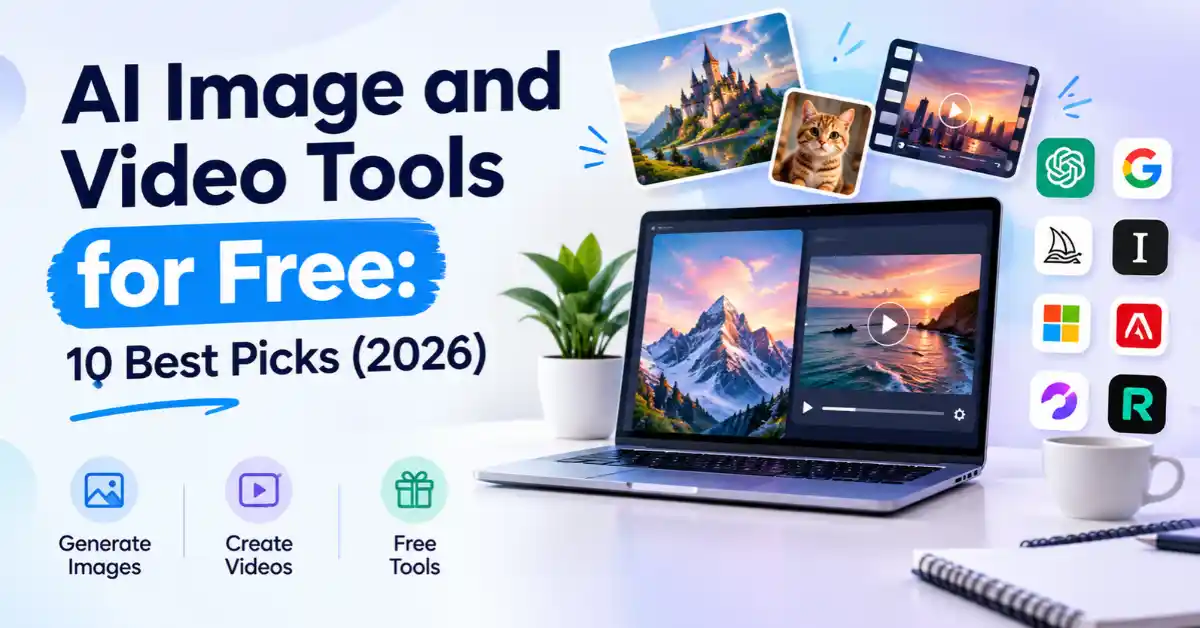
Free AI tools let you design YouTube thumbnails, create product images, and try out short video clips without spending money on a costly subscription. Many popular platforms let you generate images, edit photos, and create short videos for free.
However, their free plans work differently. Some platforms give you daily credits. Some AI tools restock your free credits every week, while others give you a fixed amount to use just once. instead of creating separate accounts across various AI platforms, it is more practical to evaluate their capabilities, usage restrictions, and available features before settling on the one that aligns most closely with your specific requirements.
This guide covers the best AI image and video tools for free. It explains what each tool does well, which restrictions to watch out for, and how to use them for blogs, YouTube, Instagram, and other creative projects in India.
Note: The free-plan details were checked against official websites on 28 October 2026. Features and daily limits may change
Which free AI tools should you try first?
If you are a beginner who wants to create both images and videos, start with these options.
Each AI platform has its own strengths and shortcomings, so the results you get can vary considerably depending on what you are trying to create. An image generator might capture the subject, lighting, and composition exactly as you described, yet still produce misspelled words or awkward lettering. Video tools come with a different set of challenges: even when the initial clip looks polished, limited free credits can leave you with little room to correct unwanted details, adjust the motion, or experiment with alternative versions.
The recommendations below explain these differences.
Best free AI image generators
A good AI image generator should do more than just produce a nice-looking picture. It should understand your instructions, allow you to make corrections, and give you the file in a format that works for your project.
ChatGPT — Best for Beginners
ChatGPT is useful when you have a picture in mind but aren’t sure how to create it yourself. You don’t have to fiddle with technical settings or learn a complicated interface. Describe your idea in everyday language, see what comes back, and explain what you’d like to change.
Imagine you’re putting together a technology article and need a visual that feels right for your page. You could ask ChatGPT to create an office desk setup featuring an open laptop, a steaming cup of coffee, and soft, ambient lighting that resembles a professional office environment. If the first result feels too crowded or doesn’t match your blog’s design, you can rethink the colour scheme, remove distracting elements, or leave a clean patch of space for the headline.
OpenAI’s official website confirms that image generation and editing are available across ChatGPT plans. However, access and usage limits can change depending on your tier. Although image generation may be available at no cost, this does not guarantee unlimited usage, as free-tier accounts often have predefined generation quotas and restrictions.
Best for: Blog illustrations, concept images, thumbnail backgrounds, and chat-based editing.
What to watch: Free accounts have usage limits. Check your current allowance before planning a large batch of images. Always check generated text for spelling mistakes before publishing.
Google Gemini — Best for Generating and Refining Images
Gemini is another helpful option if you want to start with a written description and improve the picture through follow-up instructions. You can create a product image and adjust its background to suit your blog header or article layout.
Google offers image generation and editing capabilities through Gemini, including access to some features at no cost in India. The exact models, usage limits, and output settings depend on your account and the available features.
Google also advises users to respect other people’s copyright and privacy rights when generating images. Review the final output before publishing it, especially when it contains text, product details, or recognisable people.
Best for: Creating artwork, exploring creative concepts, and refining visuals using available AI image-generation models.
What to keep in mind: Free-tier usage may be limited, and access to certain advanced models or additional features may require a paid plan.
Leonardo.Ai — Best for Creative Artwork
Leonardo.Ai is worth trying when you want a specific visual style. It works well for cinematic scenes, concept art, illustrations, and stylised product photos.
Its free plan uses a token system. Tokens are digital credits that an AI tool uses to calculate the cost of generating content. According to Leonardo.Ai’s stated free-plan allowance, users receive 150 tokens every 24 hours.
Images and videos can consume different amounts of tokens depending on the settings you choose. Check the token cost before generating content to avoid running out of credits too quickly.
Best for: Creating stylised artwork, exploring creative concepts, and experimenting with different AI models.
What to watch: Complex images or resource-intensive settings may use a large portion of your daily allowance. Start with a simple prompt and add details gradually once you are happy with the initial results.
Ideogram — Best for Text-Heavy Designs
Ideogram is useful for creating posters, promotional graphics, and YouTube thumbnails with clear, readable text.
It is particularly useful for typography-focused designs. Ideogram’s pricing page states that eligible free accounts receive weekly credits, although the available allowance and features may vary.
The platform also states that images are public by default for free users, while enhanced privacy controls are available on paid plans. Check the current privacy settings before uploading sensitive material or generating content you do not want publicly accessible.
Best for: Creating poster concepts, headline-focused designs, stylish graphics, and YouTube thumbnail backgrounds with text.
What to watch: Check spelling, spacing, and readability at the final display size. If a headline must be exact, generate a plain background first and add the text yourself using a design editor.
Microsoft Designer — Best for Simple Visual Projects
Microsoft Designer offers AI-powered image creation alongside editing features that let you remove unwanted objects and change backgrounds. You will need a Microsoft account to access the tool. Basic access may be available at no cost, but usage limits and feature availability can vary, and frequent use may require a paid subscription.
One important restriction deserves your attention. Microsoft’s terms state that Designer is licensed for personal, non-commercial use with a free Microsoft account. This means you should not assume that images created with the free version can be used for paid client work, advertisements, or business promotions without checking the applicable terms.
Best for: Personal projects, simple graphics, and experimenting with AI-powered image editing.
What to watch: Review Microsoft’s current licence and usage terms before publishing generated images on a monetised blog or using them in commercial projects.
Adobe Firefly — Best for Image Generation and Creative Editing
Adobe Firefly is useful for creating images and refining them with Adobe’s creative tools. It can help with image editing, background changes, and developing visual concepts for blog posts or social media content.
Adobe Firefly offers limited access to generative AI features on its free plan. The number of available generations, supported models, and usage limits can change depending on your plan and the features you select.
For quick social media graphics, Adobe Express is another useful option. Its free plan includes standard photo and video editing tools, templates, and limited access to selected AI features.
Best for: Image editing, creative layouts, background changes, and preparing social media posts.
What to watch: Firefly’s free allowance is limited. Check the credit cost of your chosen model or feature before starting a large project to avoid exhausting your available credits.
Best free AI video generators
AI video generation takes much more computing power than creating a single image. The tool must create a sequence of frames that look consistent over time. Because of this, short clips, limited credits, and lower export quality are common on free plans.
Here are the best options to try.
Adobe Firefly — Best First Stop for AI-Generated Clips
Adobe Firefly offers text-to-video tools and a free plan with limited credits for eligible features. This makes it a useful place to test a short visual idea before paying for a subscription.
You could use it to create an atmospheric establishing shot for a tech video, a product scene, or a short visual clip to include in a blog post.
Best for: Short creative clips, visual experiments, and testing AI-generated video concepts.
What to watch: Free access does not guarantee unlimited video generation, longer clips, or high-resolution exports. Check the available model, export settings, and credit costs in your account before starting.
Leonardo.Ai — Best for Experimenting with Image-to-Video Workflows
Leonardo.Ai supports image and video generation within the same workspace. This is useful when you want to create a still image first and then animate it into a video.
For example, you could create an illustration of a futuristic city and then experiment with motion effects to make the lights glow, animate the surroundings, or simulate camera movement.
The free token allowance is shared across your activities. Video generation can consume significantly more tokens than image generation, depending on the model and settings you choose.
Best for: Image-to-video experiments, animating still pictures, and adding motion to existing artwork.
What to watch: Check the token cost before generating a clip. Your daily allowance may not cover several long or high-quality videos, especially when using resource-intensive models or settings.
InVideo AI — Best for Prompt-Based Video Creation
InVideo AI is designed to turn written instructions into video content. Its free plan offers limited usage, and the official help centre states that the free quota resets weekly on Monday at 00:00 UTC. The platform also supports image-to-video creation.
This is helpful when you have a topic but no footage. You can enter a prompt, review the generated scenes, and decide whether the visual style suits a short explainer, a blog video, or a social media post.
Best for: Testing AI-assisted video production from text prompts or images.
What to watch: Review the export rules before planning a complete project. Free plans may impose download limits, watermarks, or other restrictions that are not always obvious when previewing a video online.
Runway — Best for Testing Advanced Generative Video
Runway is worth exploring if you want to experiment with advanced generative video tools rather than create basic slideshows. It offers AI-powered features for generating and editing video content.
However, its free offer has clear limits. The official website describes a one-time allocation of 125 credits, access to selected features, and 5 GB of storage. These credits do not renew after you use them, and free-plan videos include a watermark.
Best for: Exploring advanced AI video tools and evaluating whether a paid plan suits your creative needs.
What to watch: Treat the free allocation as a limited trial rather than a recurring source of credits. The watermark may also be unsuitable if you need a clean, publication-ready video.
A useful alternative: Pika
Pika deserves a mention for image and video creation, especially if you want to avoid watermarks. Its documentation says downloads from all plans, including the Free plan, are watermark-free.
But there is a major catch. The current Free plan lists zero monthly included credits, and it does not allow commercial use. You have to buy credits separately. This means Pika is fun to explore, but it is not a reliable zero-cost option.
Best AI tools for YouTube thumbnails
A YouTube thumbnail needs a clear subject, good contrast, and room for a big headline. It must also look good when viewed on a small mobile screen.
Because of this, the best workflow usually combines an AI image generator with a design editor.
For a technology channel, you might generate a dramatic close-up of a smartphone on a dark desk with bright lighting. Leave empty space on the left for a heading. Once the background is ready, add the exact text using Canva or Adobe Express.
Why add the text separately? AI image models still misspell words, distort logos, and create weird-looking letters. A manual text layer in Canva gives you full control over spelling, alignment, and brand colours.
Free AI image and video tools: At-a-glance comparison
Here is the practical difference between the major options.
Important: “Free access” is not a single standard. Always check the specific rules for the feature you intend to use.
How to create AI images and videos for free
You do not need a complicated workflow to get started. Pick one tool, create a small test, and improve your prompts as you learn.
Step 1: Decide what you want to make
Be specific. A blog header, a product mock-up, a thumbnail, and a video clip all require different layouts.
For example, a blog image needs clear subject placement and enough space to avoid looking cluttered. An Instagram Reel needs a tall portrait layout that keeps the main subject in the centre.
Step 2: Write a prompt with useful details
A good prompt explains the subject, environment, layout, lighting, and visual style. Instead of writing “make a cool image of a laptop”, tell the AI exactly what you want to see.
Try this example:
Create a realistic technology workspace for an Indian tech blog, featuring a slim laptop on a clean desk, subtle blue accent lighting, a soft neutral background, premium product photography, a clear focal point, wide 16:9 composition and empty space on the right for a headline. No text, no logos and no watermark.
This gives the AI clear guidance. It also ensures you have empty space left over to add your article title later.
Step 3: Generate one image and inspect it
Look closely at hands, screens, product buttons, facial features, and lettering. These details can look fine in a small preview but become obvious mistakes when you zoom in.
Do not immediately waste your credits on ten variations. Figure out what is wrong first. If the image is too busy, ask for a simpler background. If the subject is poorly positioned, tell the AI exactly where it should go.
Step 4: Convert the Image into a Video
Add instructions after my step headingMake my step heading more descriptive
For an image-to-video workflow, start with a picture that already has a good layout. Upload it to a video tool, then describe a small amount of natural motion.
For example:
Animate this product scene with a slow camera push-in and gentle reflections moving across the surface. Maintain consistent product dimensions and background throughout.Avoid sudden camera movement or additional objects.
Subtle motion is easier for AI to handle than requesting lots of fast action. Check the generated clip to ensure objects do not change shape or flicker unnaturally.
Step 5: Edit the result before publishing
Use tools like Canva to create images and video editing software to edit clips.
Make the sentence more conciseMake the wording sound more natural. Correct your titles, adjust the crop, remove weird elements, and check the audio levels. Ensure the final dimensions fit your platform.
For YouTube, check if your thumbnail is readable when scaled down. For social media, preview the finished result on a mobile phone, not just on a desktop monitor.
Step 6: Check the export and usage terms
Before hitting publish, confirm that the file can be downloaded in high quality. Check if the free tier adds a visible watermark. Finally, ensure your intended commercial use is allowed.
This final check saves a lot of time. Discovering a watermark or licensing issue after preparing a whole campaign is incredibly frustrating.
Are free AI image generators without watermarks available?
Yes, some tools offer watermark-free exports, but there is no universal rule.
Pika states that its current downloads are watermark-free, including its Free plan. However, its free tier offers zero monthly credits and does not allow commercial use. Runway, on the other hand, puts a watermark on all free-plan videos.
Also, remember that a visible logo and hidden metadata are two different things. A picture without a visible logo may still contain hidden data showing it was AI-generated. The safest approach is to make a test generation, download it, and inspect the final file before relying on it for a large project.
What are the limitations of free AI image and video tools?
There is usually a trade-off when using free software. You might get fewer generations, slower processing times, or lower export quality.
Other limitations are less obvious. AI-generated text can be misspelled. Objects can melt or change shape between video frames. Product images can feature completely invented physical details. Because of this, AI pictures should not replace accurate product photographs, technical diagrams, or real-world news evidence.
Privacy is another major concern. Never upload identity documents, financial records, private photos, or confidential client materials to an AI generator.
Finally, check commercial usage rights separately. A tool might allow free generation but legally restrict you to personal use only.
Common problems and how to fix them
Choosing the right tool for your project
You do not have to select just one AI platform for everything. Mixing tools often makes the most sense.
For a blog article, you could generate a background image in Gemini or ChatGPT, edit the layout in Canva, and review the final image yourself. For a short video, you could test a clip with Adobe Firefly or animate a picture in Leonardo.Ai.
A creator making videos every week will have different needs than a student making one college presentation. The creator needs to check commercial rights and weekly quotas. The student will likely be perfectly happy with a one-time free allowance.
The practical recommendation: Start with the simplest tool that meets your needs. Check its free-plan rules, create one test file, and only commit your time when you are happy with the result.
READ THIS ALSO : 5 Best Free AI Tools for Students in India (With Prompts)
Frequently Asked Questions (FAQ)
1. What is the best free AI image generator? There is no single best tool for everything. ChatGPT is great for beginners who want to describe an image and refine it through chat. Gemini is another good choice for image generation and editing. Leonardo.Ai works well for creative artwork, while Ideogram is excellent for typography-led designs.
2. What is the best free AI video generator? Adobe Firefly, Leonardo.Ai, and InVideo AI are all worth testing for short AI video creation. Runway is another option, but its free credits are a one-time allowance and its videos carry a watermark. Choose based on whether you need text-to-video, image-to-video, or advanced generative controls.
3. Can I generate AI images without paying in India? Yes. Several services offer free image-generation access to users in India. Gemini provides image generation through its free tier. ChatGPT, Leonardo.Ai, and Adobe Firefly also offer free access subject to daily limits. Always check the official website to see which specific models are included.
4. Which AI image generator does not add a watermark? Watermark rules vary by company. Pika states that its current downloads are watermark-free, but its free tier has zero included monthly credits and bans commercial use. Runway, by contrast, adds a watermark to free-plan videos. Always download a test file to check for yourself.
5. How can I create AI videos from images for free? First, generate or find a still image you want to animate. Open a service with an image-to-video feature, upload the picture, describe a simple movement, and hit generate. Leonardo.Ai and InVideo AI both support this, depending on your available credits.
6. What are the best free AI tools for YouTube thumbnails? The best method is combining tools. Use ChatGPT or Gemini to generate the background image. Then, use Canva or Adobe Express to add the final text, logos, and branding. This gives you total control over spelling, contrast, and layout.
7. Can I use AI-generated images and videos commercially? That depends on the specific tool and plan. Microsoft Designer’s licence specifies personal, non-commercial use only. Pika’s current Free plan also excludes commercial rights. Always read the terms of service to make sure commercial usage is allowed.
8. Why do free AI video tools have limited credits? Generating a video takes much more computing power than generating a single image. The AI has to create and coordinate many frames per second. Because of the high processing costs, companies place strict limits on how many free videos you can generate.
9. Can I use AI-generated videos on YouTube? Yes, but you must follow YouTube’s rules. YouTube requires you to disclose when you upload realistic, synthetically generated content. For example, you must tell viewers if an AI video shows a realistic event that never happened. Standard AI assistance for making a thumbnail does not usually require this disclosure.
10. Are free AI image generators safe to use? They can be safe, but it depends on the provider’s privacy rules. Read the privacy policy before uploading sensitive photos, confidential business documents, or private information. Always double-check AI images for fabricated facts or misleading details before publishing them.
1 thought on “AI Image and Video Tools for Free: 10 Best Picks (2026)”