
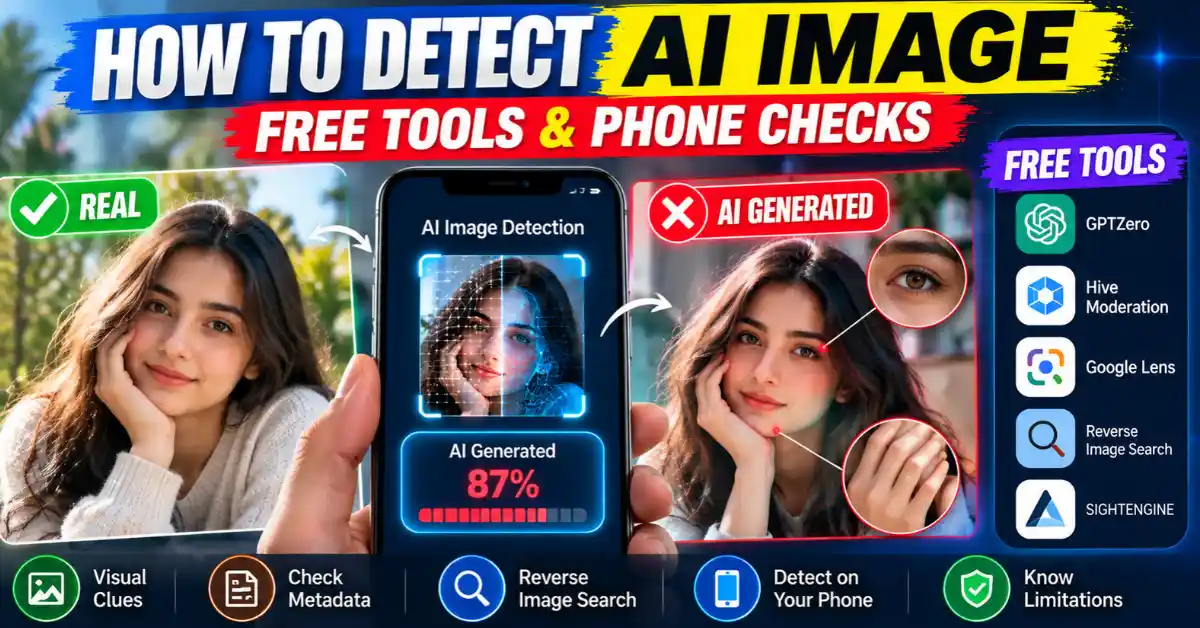
AI-generated images can look very similar to real photographs. Because of this, it can be difficult to tell whether an image is real just by looking at it. You can check suspicious images using free online tools, Google Lens, digital watermarks and simple visual checks.
The best approach is to combine these methods instead of relying on just one detector.
How to Detect an AI Image
To detect an AI-generated image, start by checking it with Google’s SynthID Detector if it may contain a supported watermark. Use Google Lens to find the original image and check details such as text, lighting and reflections. You can also inspect the available image metadata and try another AI image detector. However, no single method can reliably identify every AI-generated or AI-edited image.
Key Takeaways
- Check for watermarks: Google SynthID Detector checks for supported AI provenance signals.
- Use Google Lens: Find earlier versions of an image and learn where it has appeared online.
- Check visual details: Look closely at text, reflections, object shapes, shadows and repeated patterns.
- Compare detector results: A detector’s probability score is an estimate, not proof.
- Check WhatsApp images carefully: Screenshots and shared images may not contain all the original information.
- Protect your privacy: Avoid uploading sensitive photographs to unfamiliar websites
1. How to Detect AI Images in Five Steps
These steps can help you check suspicious images found on websites, social media or messaging apps.
Check the Image with Google SynthID Detector
Open Google SynthID Detector ↗
Google’s verification website checks for supported SynthID watermarks in AI-generated content. Google announced global access in English on 7 October 2026. The service supports content linked to Google and selected partner systems.
- Open the SynthID Detector website.
- Select the image file you want to check, following the website’s instructions.
- Wait for the result.
- Read the result and check which types of watermarks the tool supports.
What does the result mean?
Finding a supported watermark is useful evidence that the image, or part of it, was generated or edited using an associated AI system.
However, if the tool does not detect a watermark, the image could still have been created using another AI model or a method that does not leave a detectable watermark.
Search the Image Using Google Lens
Google Lens helps you find similar images and websites that contain the same image or a related version.
- Open the Google app and tap the Lens icon.
- Select the image from your gallery or screenshots.
- Check the matching images and search results.
- Open About this image, if the option is available. Look for information about the image’s history, metadata or use on other websites.
Google explains that the “About this image” feature may show information from other websites, available metadata or a SynthID watermark. The information you see depends on the image and the features available to you.
This method is useful when someone shares a photograph with a misleading caption. For example, an old photograph from another event or location may be presented as a picture of a recent incident.
Check Suspicious Details in the Image
Zoom in on the image and look closely at areas where different objects meet or interact.
- Text: Look for misspelled words or letters that do not make sense on signs, posters and screens.
- Hands and faces: Check for unusual fingers, teeth, jewellery, facial details or objects that do not fit together naturally.
- Lighting: Look for shadows pointing in different directions or highlights that do not match the light source.
- Backgrounds: Check for repeated people, connected objects or buildings with strange shapes.
- Reflections: See whether mirrors, windows and water reflect the objects around them correctly.
- Textures: Look for unusual patterns in skin, hair, clothes, plants and other surfaces.
Remember: Visual clues are not proof
These signs can raise questions, but they do not prove that an image is AI-generated. Modern AI models can create realistic hands, readable text and convincing reflections. Genuine photographs may also contain unusual details because of movement, camera processing or poor image quality.
Google also recommends combining visual checks with other ways of verifying an image.
Check the Image’s Metadata and Origin
Metadata is information stored with an image file. Depending on how the image was created and handled, it may include the camera model, capture date, editing software and other details.
For an original photograph, this information may help you understand its history. Supported Content Credentials may record details about the tools and actions used to create or edit an AI-generated image.
- Metadata can be removed or changed.
- A screenshot may not contain the original image’s metadata.
- Missing camera information does not prove that an image is AI-generated.
- Information showing that editing software was used does not necessarily mean generative AI was involved.
Content Credentials and other provenance signals can provide useful evidence about an image’s origin when valid information is available. However, they do not automatically prove that the image shows a real event.
Check the Image with Another AI Detector
If visual checks and provenance information do not give you a clear answer, try another AI image detector.
AI or Not
Checks whether an image may have been created using AI. Free access depends on its current account and usage terms.
Sightengine
Offers AI image detection and a free testing option, subject to its current terms.
Both tools use AI models to examine images, but their methods, access options and features may differ.
Do not rely on one detector
Do not simply count how many tools label an image as fake. Check whether their results agree, whether they explain their findings and whether you can verify the image’s source independently.
2. Best Free and Accessible AI Image Detection Tools
Each tool serves a different purpose. There is no single tool that works best for every image.
Best AI Image Detection Tools
Compare tools, access options and their main uses before checking an image.
| Tool | Main Purpose | Cost and Access | Best Use |
|---|---|---|---|
| Google SynthID Detector | Checks for supported AI watermarks | Public access announced globally in English; access conditions may change | Checking supported AI-generated content |
| Google Lens | Searches for matching images and their online context | Free Google search feature | Finding the original source and similar images |
| Gemini | Checks supported image signals | Sign-in required; features and supported platforms may vary | Checking Google AI signals and available Content Credentials |
| OpenAI Verify | Checks supported provenance signals linked to OpenAI tools | Online verification tool; check current terms | Checking images created or exported using supported OpenAI workflows |
| AI or Not | Uses an AI model to assess an image | Free access depends on current account and usage terms | Getting another detector’s opinion |
| Sightengine | Detects AI-generated images and other media | Free testing option; other access may be paid | Testing a dedicated detection model |
| Runway C2PA Verifier | Reads C2PA Content Credentials | Online verifier; check its current terms | Checking signed records of an image’s creation and editing history |
Note: These tools check different types of evidence. No single tool can verify every AI-generated or AI-edited image. Features, availability and usage limits may change.
Which Tool Should You Try First?
For everyday checks, start with Google Lens to investigate where an image came from.
If you suspect that an image was created using AI, try SynthID Detector and check any available provenance information. Use another AI image detector if you need more evidence.
Remember that tool availability, supported file formats and free usage limits can change.
3. How to Identify an AI Image on Your Phone
You do not need a computer to check most suspicious images. An Android phone or iPhone is enough for a basic check.
1. Open Google Lens
Select a downloaded image or screenshot and search for matching images. Check the websites in the results. See whether the picture appeared online before the event mentioned in its caption.
2. Zoom In on the Details
Check the text, fingers, edges, shadows and background objects. Look for several unusual details rather than judging the image by just one problem.
3. Run a Suitable Verification Check
Open SynthID Detector or another suitable service in your phone’s browser. Follow its instructions to check the image.
Some tools need the original image file rather than a picture displayed on your screen.
4. Compare the Results
Check whether the original source, detector result and visible details support the same explanation. If they disagree, treat the image as unverified.
Phone tip: If you only have a screenshot, crop it closely around the image before uploading it to a supported verification tool. Google recommends tight cropping when using screenshots for Gemini verification.
4. How to Check If a WhatsApp Image Is AI-Generated
WhatsApp forwards often arrive without details about who created an image or where it first appeared. A realistic picture with a worrying caption can therefore be difficult to verify.
Follow these steps:
- Save the image or take a screenshot. Open the image in WhatsApp and save it to your phone. Take a screenshot if you cannot save it.
- Search with Google Lens. Look for earlier copies, original publications and fact-checking reports.
- Inspect the image. Compare the visible details with the claims in the caption. Do not treat unusual details as proof of AI generation.
- Try a suitable detector. Use SynthID Detector to check for supported provenance signals, or compare the result with another AI detector.
- Ask for the original if needed. If the sender has the original photograph, ask for the file and any information about its source.
WhatsApp offers different media-sharing quality options, including HD images. However, an HD image is not necessarily genuine. A shared image may also lose some information from the original file.
Check whether the original source, detector result and visible details support the same explanation. If they disagree, treat the image as unverified.
Phone tip: If you only have a screenshot, crop it closely around the image before uploading it to a supported verification tool. Google recommends tight cropping when using screenshots for Gemini verification.
What If Google Lens Finds No Matching Images?
This does not prove that the image is AI-generated. The image may be new, private, unpublished, cropped or difficult to match. The results also depend on the information Google has indexed.
If an image claims to show breaking news, a public emergency or a major event, check reliable news websites and official sources before sharing it as fact.
For sensitive images, avoid uploading them to unfamiliar websites without checking their privacy terms.
5. Real Photo vs AI-Generated Image
The table below shows some clues to look for and explains why each clue has its limits.
| Feature | Possible AI-Generated Clue | Important Limitation |
|---|---|---|
| Text and signs | Strange letters or words that do not make sense | AI can also produce readable text |
| Hands and objects | Impossible anatomy or an unnatural grip | Genuine photos may look distorted at small sizes |
| Lighting | Shadows or reflections that do not match | Complex lighting can also confuse people |
| Background | Repeated details, unusual structures or merged objects | Compression and blur can affect genuine images |
| Surface texture | Repeated or unusual patterns in skin, hair or fabric | Camera processing can smooth real textures |
| Metadata | Supported AI creation information or unusual origin records | Metadata can be missing, removed or changed |
| Watermarks | A supported AI watermark is detected | Different AI systems may use different watermarks |
| Source history | Earlier copies or original records contradict the caption | Some images have no publicly available history |
Google recommends checking unusual details, examining available metadata and using reverse image search. It does not suggest relying on one visual clue as final proof.
AI-Generated vs AI-Edited vs Real Images
It helps to understand the difference between these three types of images.
- AI-generated image: Generative AI created the image or most of its visual content.
- AI-edited image: AI changed an existing photograph or image. For example, it may have added, removed or replaced objects.
- Real photograph: A camera captured the scene, although the image may still have been edited or enhanced using normal software or camera processing.
These categories can overlap. For example, someone could add an AI-generated person to a real photograph of a street. A detector designed to recognise fully AI-generated images may not explain all the changes made to that photograph.
6. How Accurate Are Free AI Image Detectors?
Free AI image detectors can be useful, but their accuracy depends on the tool, image generator, type of editing and test conditions.
A benchmark preprint from February 2026 tested 23 versions of open-source image detectors across 12 datasets. It covered 2.6 million samples and 291 image generators. In that evaluation, mean accuracy ranged from 37.5% for the weakest model to 75.0% for the strongest model.
The researchers also found that many tested detectors struggled to recognise images from some modern commercial generators. These findings apply to the models and datasets used in that study. They do not describe the accuracy of every current commercial tool.
The main lesson is simple: a detector score is an estimate, not proof that an image is genuine or fake.
Why Do AI Image Detectors Make Mistakes?
- New image generators may create patterns that a detector has not been trained to recognise.
- Resizing, cropping, compression or heavy editing can change an image’s features.
- A genuine photograph may contain patterns that resemble AI-generated content.
- Different detectors may use different datasets, scoring systems and decision limits.
- A tool may perform well on its own test images but produce weaker results on unfamiliar images.
| Result | What It Means |
|---|---|
| Supported watermark detected | Strong evidence of generation or editing linked to that watermark |
| Detector says “likely AI” | The model predicts that the image may be AI-generated; check further |
| Detector says “likely real” | The model found limited evidence of AI generation, but the image is not proven genuine |
| Two detectors disagree | The image’s origin remains uncertain |
| No watermark or metadata found | There is not enough evidence to establish how the image was created |
Do not rely only on the accuracy claims shown by a detector’s website. Check whether its tests used similar images, whether the results were tested independently and whether the evaluation measured false positives and false negatives.
A false positive occurs when a detector wrongly labels a genuine image as AI-generated. A false negative occurs when it fails to identify an AI-generated image.
7. Can Google Detect AI-Generated Images?
Yes, Google offers several ways to check AI-generated images, but these tools do not identify every AI image.
The main options serve different purposes:
- SynthID Detector: Checks for supported provenance signals, including those linked to Google and selected partner systems.
- Gemini verification: Checks supported content signals. Google’s current help documentation says Gemini’s SynthID recognition identifies content created with Google AI tools.
- Google Lens and About this image: Help you investigate where an image appears online. They may also show available metadata or a Google SynthID signal.
These tools can provide useful evidence, but they do not all cover the same types of images. If Google’s SynthID check finds no supported watermark, you cannot conclude that the image was taken with a camera rather than created using AI.
8. Common Mistakes When Checking AI Images
Mistake 1: Treating unusual hands as proof
AI systems have improved. Genuine photographs can also contain distorted details because of movement, low resolution or camera angle.
Mistake 2: Assuming missing metadata means the image is AI-generated
Many genuine images have little useful metadata, especially after editing or sharing.
Mistake 3: Trusting every detector score
Scores from different tools may not be directly comparable. A high score does not always mean there is an equally high chance that the image is fake.
Mistake 4: Assuming an image is genuine because it has no watermark
A detector can only identify the signals it supports. An AI-generated image may not contain a watermark that the tool can detect.
Mistake 5: Ignoring the image’s original context
Someone can use a genuine photograph with a false caption, date or location. Always check the claims made about the image.
Mistake 6: Uploading private photos without checking privacy
Read the website’s data-handling terms before using a third-party detector. Avoid uploading sensitive personal images just to satisfy curiosity.
Final Takeaway
The best practical approach is to check an image’s origin, look for supported provenance information, inspect visual details and compare results from suitable tools.
Google Lens is a useful starting point for finding an image’s source. SynthID Detector and other provenance tools can provide more specific evidence when they support the image. Free AI image detectors can offer another opinion, but none should be treated as the final authority on its own.
If the available evidence is not clear, treat the image as unverified rather than declaring it definitely real or fake.
READ THIS ALSO: 5 Best Free AI Tools for Students in India (With Prompts)
Frequently Asked Questions: How to Detect AI Images
1. How Can I Detect an AI Image for Free?
Start with Google Lens to find earlier versions of the image and its original source. Then check it with Google SynthID Detector if it may contain supported provenance signals. You can also inspect visual details and try a free AI image detector. Combining these methods gives you more useful evidence than relying on just one website.
2. How Do I Identify an AI Image on My Phone?
Open Google Lens, select an image from your gallery or screenshots, and review the matching results. If you still cannot identify the source, try SynthID Detector or another AI image detector. Zoom in to check text, shadows, reflections and object details. Remember that visual clues alone cannot prove that an image was created using AI.
3. How Can I Check Whether a WhatsApp Image Is AI-Generated?
Save the image or take a screenshot, then search for it using Google Lens. Look for its original source, earlier versions and reliable fact-checking reports. Next, check any available provenance information and try a suitable detector. If possible, ask the sender for the original image and its source instead of relying only on a forwarded copy.
4. Can Google Detect AI-Generated Images?
Google offers SynthID verification, image information through Google Lens and supported checks in Gemini. However, each tool has different features. SynthID checks for supported watermarks, while Lens helps you investigate an image’s online history. A negative result does not prove that an image is genuine.
5. What Is the Best Free AI Image Detector?
No single detector is best for every image. Google SynthID Detector is useful for checking supported provenance signals. AI or Not and Sightengine offer model-based image detection, while Google Lens helps you investigate an image’s source. The best starting point depends on the information available and what you want to check.
6. How Accurate Are Free AI Image Detectors?
Accuracy varies by tool, image generator and test conditions. A 2026 benchmark preprint reported major differences between the open-source detectors tested. No single model performed equally well across all the datasets in that study. Treat a detector result as an assessment, not proof, and check important findings against the image’s source and available provenance information.
7. Can AI-Generated Images Look Completely Real?
Yes. Modern image generators can produce convincing images of people, landscapes, products and buildings. Some images may still contain unusual details, but the absence of such errors does not prove that a photograph is genuine. When authenticity matters, check the image’s history, available metadata and supported provenance signals.
8. Does Missing Photo Metadata Mean an Image Is AI-Generated?
No. Metadata can be removed, changed or lost when an image is edited, captured as a screenshot or shared online. Many genuine photographs also contain little useful metadata. Missing metadata means you have less information about the image, not that it was created using AI.
9. Can AI Image Detectors Identify Images Created by ChatGPT?
Some tools may identify supported provenance signals associated with images created or exported through OpenAI tools. OpenAI Verify checks supported signals such as C2PA metadata and SynthID watermarks. However, it only covers supported provenance information linked to OpenAI tools. It should not be treated as a universal detector for every AI image.
10. Can Google Lens Tell Whether a Photo Is Fake?
Google Lens can help you find matching images and investigate where a photograph has appeared online. The “About this image” feature may also show available metadata and supported watermarks. However, Lens does not guarantee an authenticity verdict for every image. Finding no matching results does not mean the photograph is fake.